Mix Setup
The Mix Setup page is where you configure the specific details of the mix you are about to run. This includes which machine you are using, which Work Order to follow, and the size of the mix.
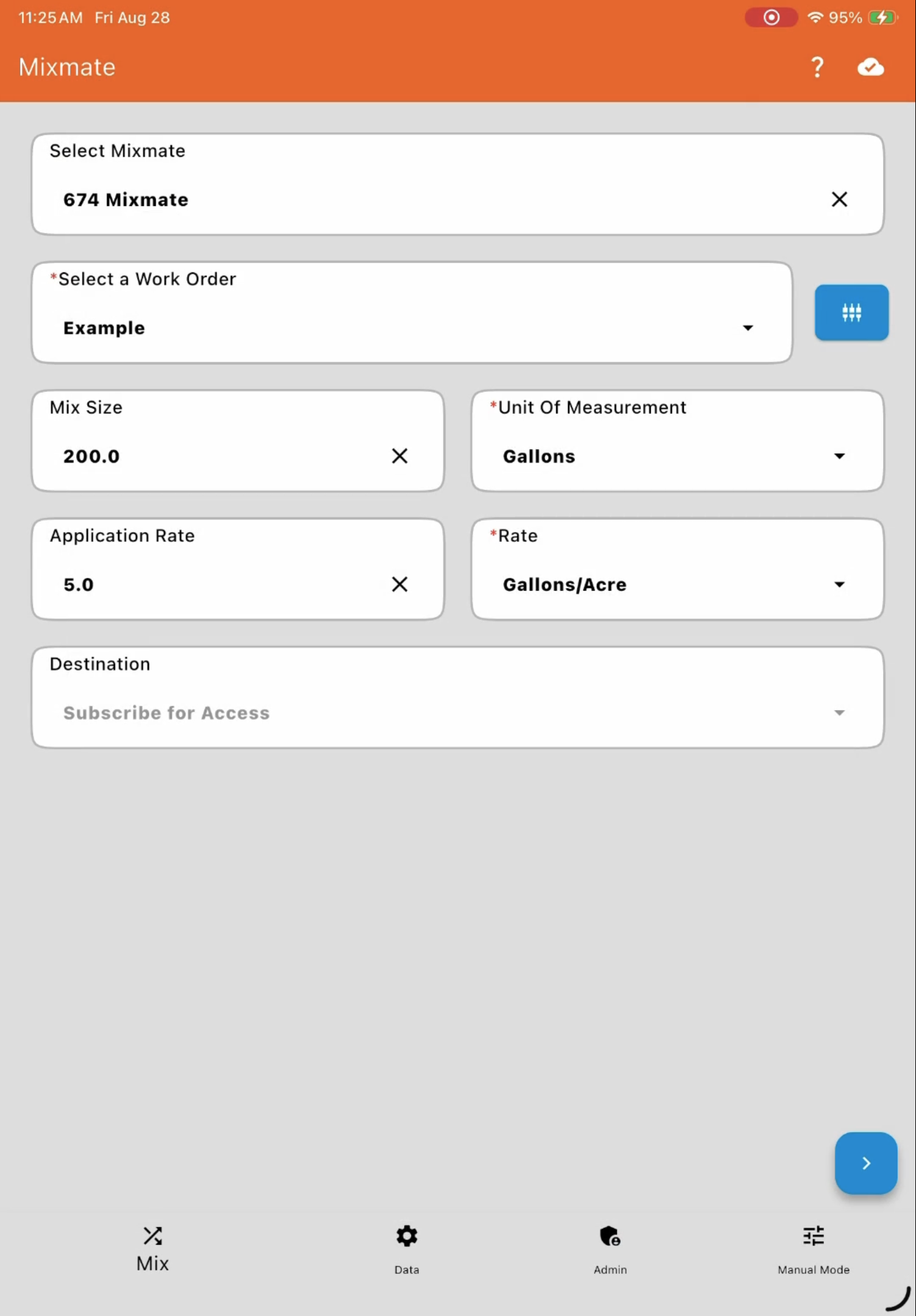
Based on the sprayer/tank size you select as the Destination, the system calculates how many mixes it will take to complete the total Work Order (e.g., it may take 5.86 mixes to finish the job).
Recovery Mixes
Section titled “Recovery Mixes”If there are any mixes currently in Recovery, tapping the Mix tab in the bottom navigation bar brings up the Recovery Mixes list instead of Mix Setup. Each card shows the Job Number, when the mix started, elapsed mix time, and the Destination.
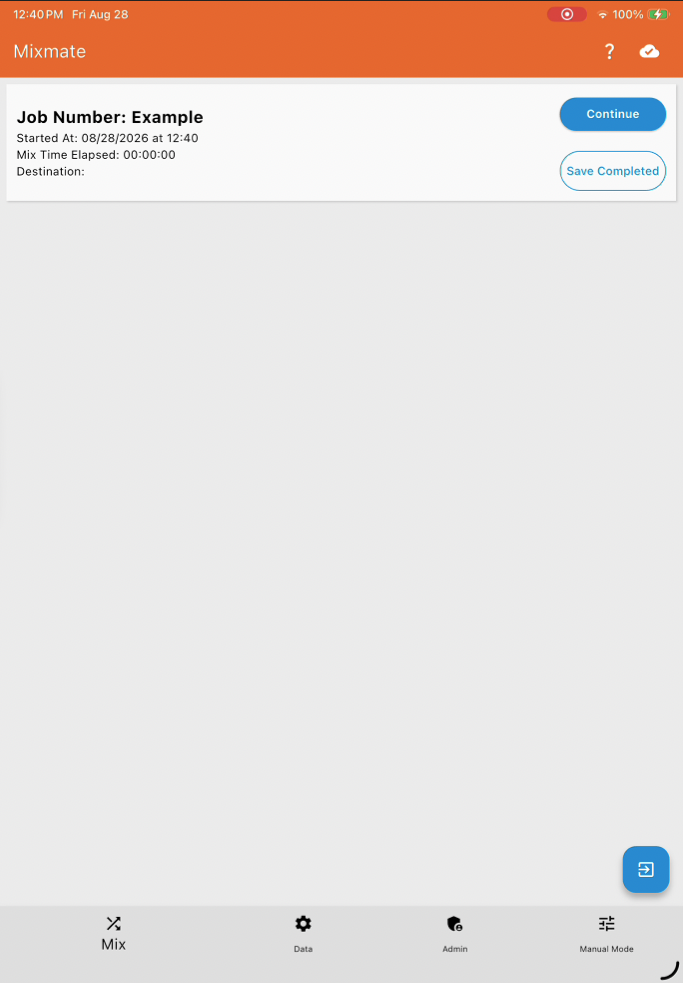
Continue: Resumes the mix from where it was saved for recovery, taking you back into the mix flow to finish it.
Save Completed: Finalizes the mix as-is and saves it to history without resuming.
Once every recovery mix has been continued or saved as completed, the Mix tab returns to showing Mix Setup as normal. A mix lands here after choosing Save for Recovery from the During a Mix screen — see During a Mix.
1. Select Mixmate
Section titled “1. Select Mixmate”Choose the specific Mixmate machine you are using for this mix.
Note: This is not strictly required. You can leave this blank if you are simply creating a record for a manual mix that was done without Mixmate automation.
2. Select a Work Order
Section titled “2. Select a Work Order”You must select the Work Order you want to run.
Missing a Work Order? If you do not see the Work Order you are looking for, check the Applied Mix Filters. The list on this screen may be filtered differently than the main Work Orders list in the Data tab.
Templates aren't listed: a Template is the plan, not a job to mix. Select the Work Order for the field you're spraying instead.
Repacks are listed like any other Work Order. See During a Mix for how they run.
3. Work Order Progress
Section titled “3. Work Order Progress”This section shows your progress toward the total Work Order goal (e.g., how much acreage is left), plus a Mixes Remaining figure — how many more mixes of the Mix Size you've entered below it would take to finish the Work Order.
Note: This only appears for a Work Order (Completable), which is set up to track completion. Reusable Mixes and Repacks don't show it. See Work Order Types.
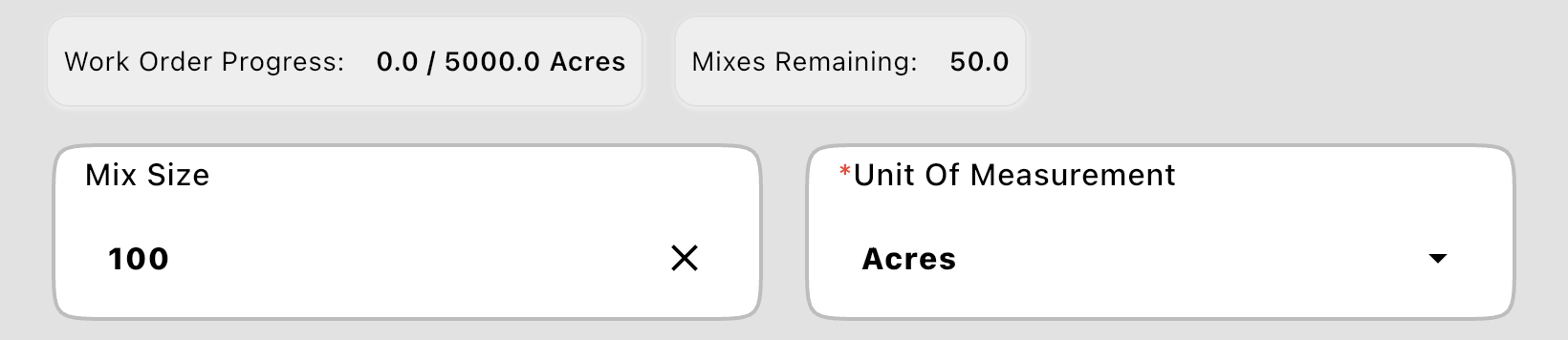
4. Mix Size and Units
Section titled “4. Mix Size and Units”Use these fields to define how big this specific mix will be. You can define the size by Volume, Weight, or Area.
Liquid Rate-Based: You can enter the size in Total Volume (Gallons / Liters) or Area (Acres / Hectares).
Dry Rate-Based: You can enter the size in Total Weight (Lbs / Kg) or Area (Acres / Hectares).
Totals-Based: You must use Volume for liquids and Weight for dry products.
5. Application Rate
Section titled “5. Application Rate”If your Work Order is based on an application rate (e.g., 10 Gallons per Acre), you can adjust that rate here. This automatically recalculates the amount of chemical needed for the mix size you chose.
6. Destination
Section titled “6. Destination”Select the truck, sprayer, or tank you are filling.
When is this required? You must select a destination if:
The Work Order calculates mix size based on the Destination Capacity.
You have automated Mix Actions (like auto-reporting) linked to a specific vehicle.
7. Next Step
Section titled “7. Next Step”Once the setup looks correct, press the Blue Arrow (>) in the bottom right corner to move to the Mix Preview page.