Work Records
A Work Record is the proof of your work — a detailed report of every single mix performed and completed with Mixmate. It's created automatically as soon as a mix is finished, and shows exactly what was planned, what actually happened, and when it took place. This section of the app allows you to review historical data, track product usage, and export records as PDF or CSV files for billing or regulatory compliance.
To understand records, it helps to see the whole picture:
Work Order: The Plan (what you intended to do).
Mix: The Process (the machine doing the work).
Record: The Result (the saved history of what happened).
You can view records and generate reports in both the Mixmate App and the Web App (app.mixmate.com).
Finding and Filtering Records
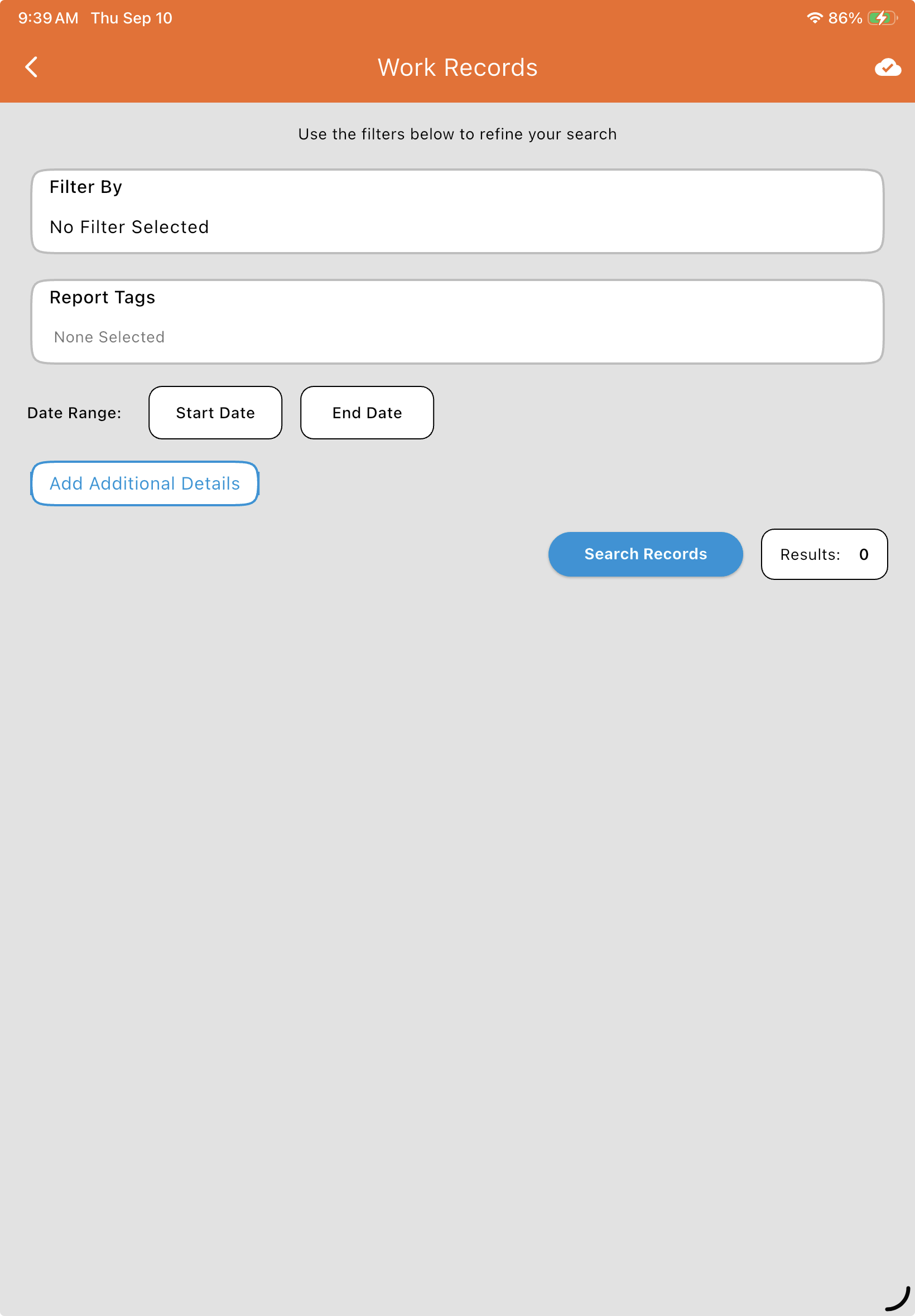
Section titled “Finding and Filtering Records”Go to Data > Work Records (under Reporting). At least one of the following selections is required to run a search:
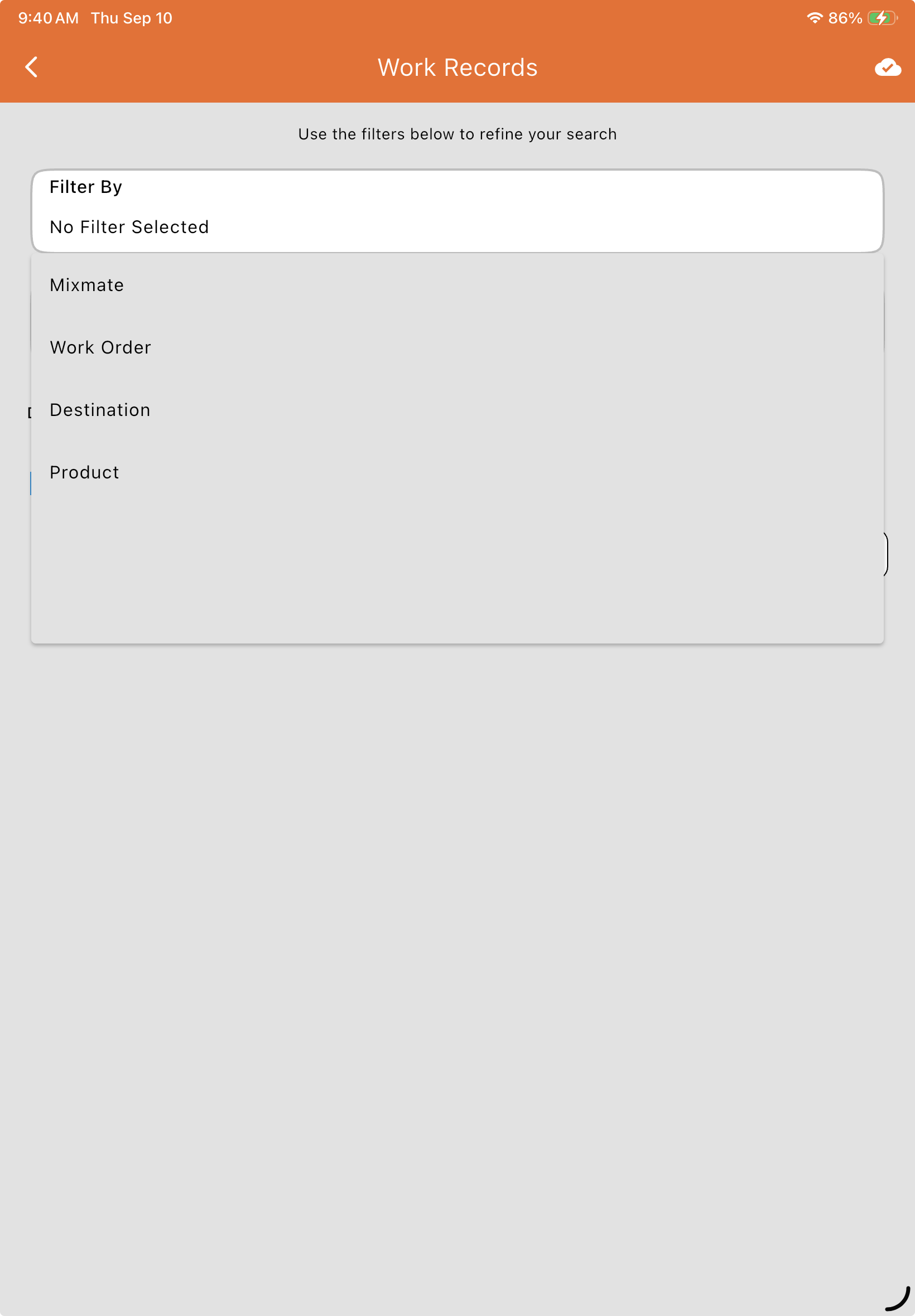
Filter By: Choose one category — Mixmate, Work Order, Destination, or Product — then select any number of items within that category.
Example: Select "Product," then select "Atrazine" and "Roundup" to see every mix containing either product.
Report Tags: Select any number of tags to only show mixes associated with them (e.g., a particular Grower, Farm, or Field).
Date Range: Set a Start Date only, or both a Start Date and End Date.
Cloud Sync: Mixmate only searches records that have been uploaded to the cloud. If a recent record is missing, ensure your tablet or device has synced.
Tap Search Records. A live Results count updates with your filters, and a list of matching records appears below. Tap on any record to see the full details, including the exact amounts of chemicals used.
Add Additional Details
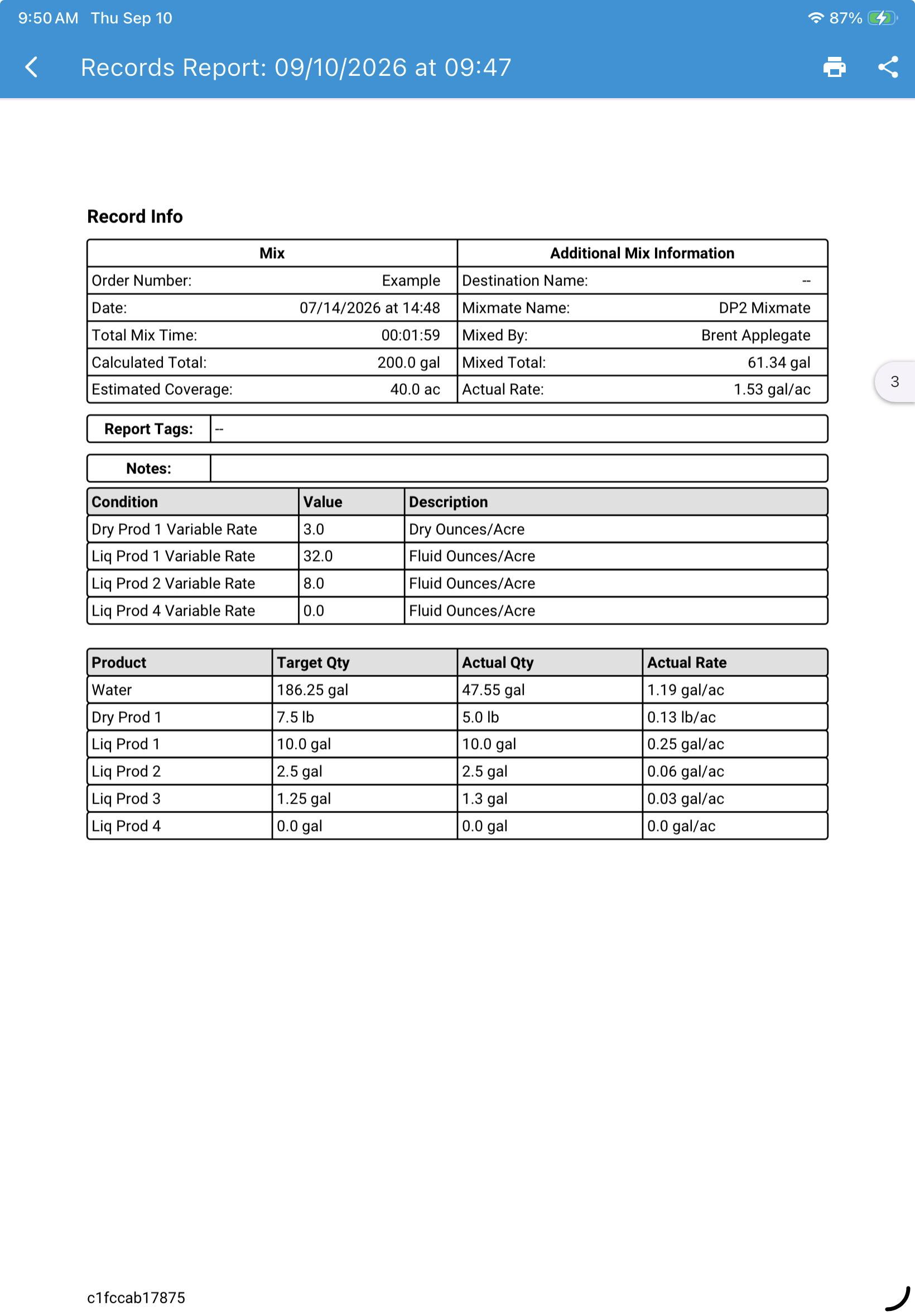
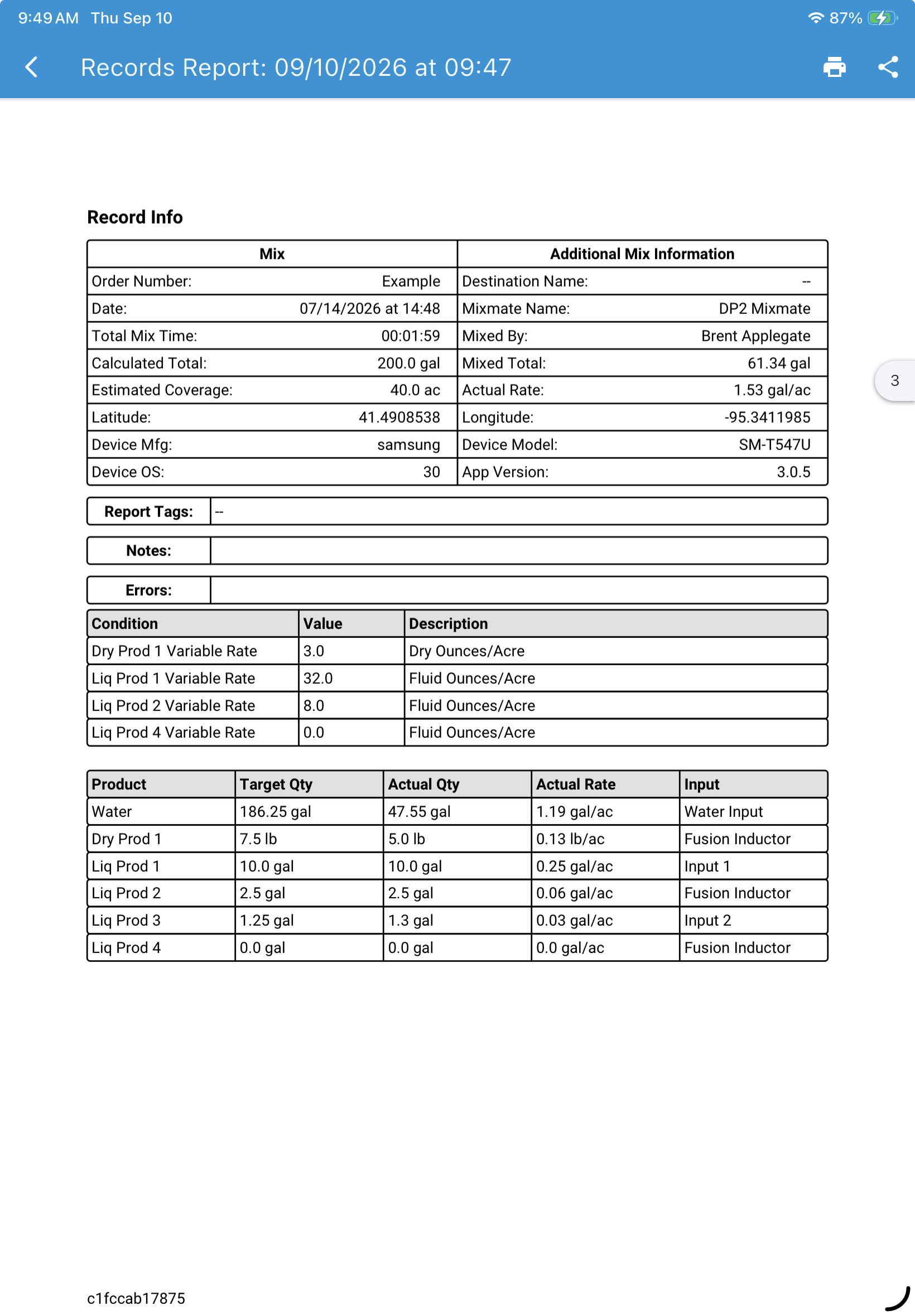
Section titled “Add Additional Details”Before searching, you can toggle Add Additional Details to include extra data in your PDF report (this has no effect on CSV output). The additional details are:
Device information used to make the mix (manufacturer, model, OS)
Any errors that occurred during the mix
Location of the device during the mix (latitude/longitude)
Mixmate App Version
Plumbing (Input) used to measure each product
Compare the same record with the option off (left) and on (right) — note the added Latitude/Longitude, Device Mfg/Model/OS, App Version, Errors row, and Input column:
Generating a PDF Report
Section titled “Generating a PDF Report”Once you have your search results, tap Generate Report or PDF to turn them into a professional report. You can customize the output with:
File Name: Defaults to a timestamp but can be edited.
Cover Page: Adds a summary page showing the total number of records.
Overview Page: Provides a high-level summary of the Work Orders used and the Total Product volumes consumed across all selected mixes.
Mix Pages: Generates a dedicated, detailed page for every single mix in the report.
Downloading CSV Reports
Section titled “Downloading CSV Reports”Tier: Premium. The CSV option is only available on the Web App — it does not appear in the Mixmate tablet app. It generates a spreadsheet file and saves it directly to your device's downloads folder — ideal for importing data into accounting software or other management platforms. Mixes are grouped by Mix ID, with one row per product:
- Mix ID
- Work Order Number
- Completed at Timestamp
- Mixed By
- Destination
- Notes
- Estimated Coverage (Displays "-" for Work Orders using totals)
- Estimated Coverage Rate Units (Displays "-" for Work Orders using totals)
- Report Tags
- Product Name
- Target Qty
- Actual Qty
- Unit of Measurement
- (Optional) Report Tag Categories (Can be multiple columns)

Where Do Downloaded Files Go?
Section titled “Where Do Downloaded Files Go?”The location of your files depends on whether you are using the Mixmate App (tablet), the Web App (browser), or the Intersect Portal.
Work Records & Reports: When you generate a PDF or CSV record in the Web App, the files typically go to your computer's default "Downloads" folder.
Knowledge Base (KB) Documents: If you download manuals from the Support Knowledge Base, they are saved to your browser's designated download location.
Tablet Exports: Files exported directly from the Mixmate Android or iOS app are usually found in the device's Internal Storage > Downloads folder or within the "Files" app.
Why won't my file download? (Download Blockers)
Section titled “Why won't my file download? (Download Blockers)”If you click a download link and nothing happens, it is likely due to a security setting or a "blocker." Common causes include:
Pop-up Blockers: Most browsers (Chrome, Safari, Edge) block automatic downloads and pop-ups by default. Look for a small icon in the address bar with a red "X" and select "Always allow pop-ups from mixmate.com."
Permissions Not Accepted: The Mixmate app requires "File and Media" access to save reports to your device. If this was denied during setup, the download will fail.
PDF Viewer Issues: Sometimes the file has downloaded, but your browser is trying to open it in a built-in viewer that is failing. Right-click the link and select "Save Link As..." to force a direct download to your hard drive.
Security Software: Aggressive antivirus or "Safe Browsing" settings may flag a CSV or PDF file as a potential threat. Check your browser's "Downloads" history (Ctrl+J or Cmd+J) to see if the file was "blocked for security" and select "Keep anyway."
Common Questions
Section titled “Common Questions”Can I edit a record?
No. Once a record is created, it is locked forever. This ensures your data is accurate and compliant for audits.
Why do automated mixes look different than manual ones?
Automated mixes use the machine's sensors to record the exact amount down to the ounce. Manual mixes rely on the numbers the operator typed in by hand.