Group Settings Page
The Group Settings page is where you configure the default behavior, measurement systems, and automation logic for your entire organization. These settings ensure that Mixmate operates consistently across all devices in your group.
Mix and Work Order Defaults
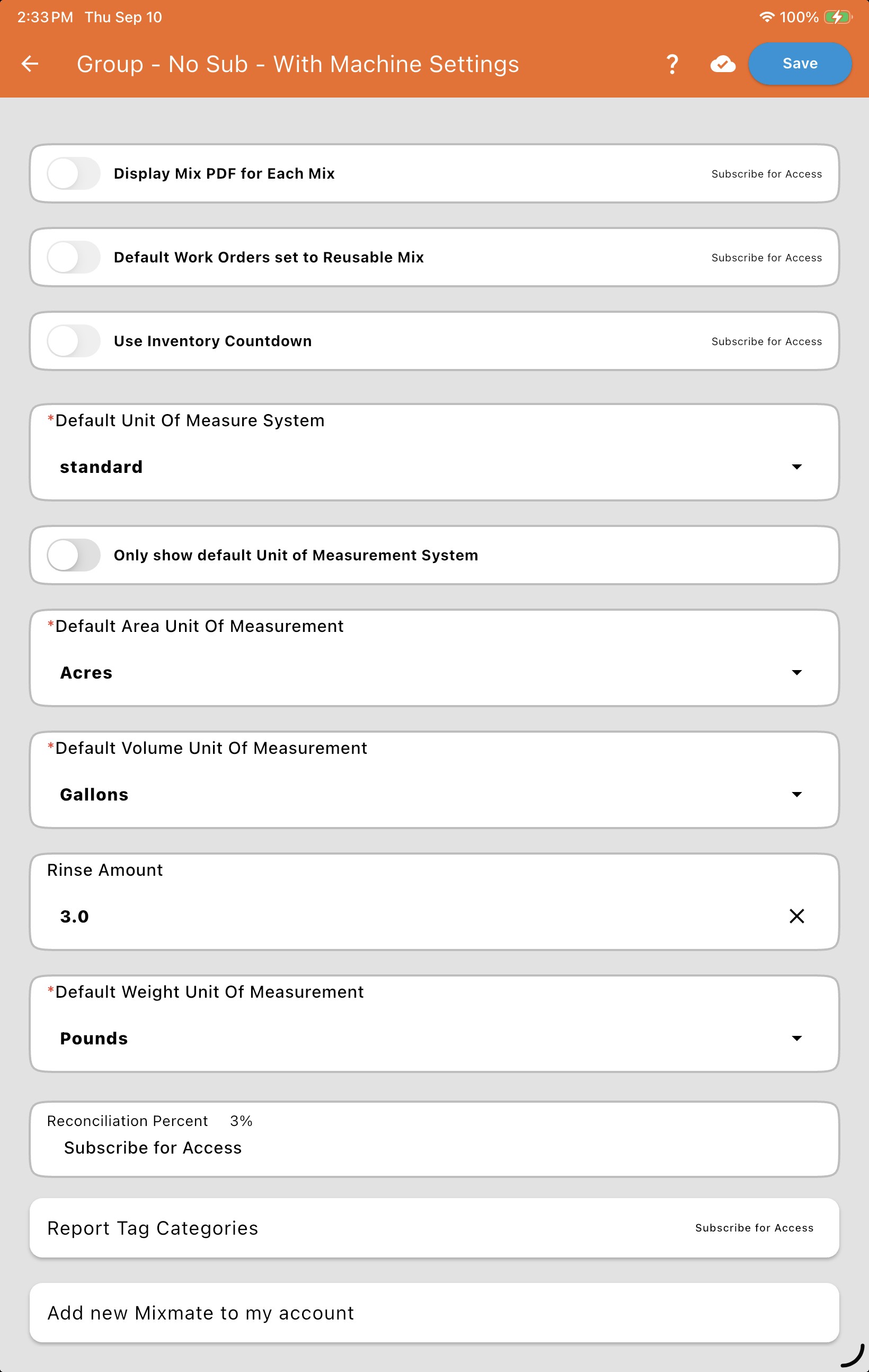
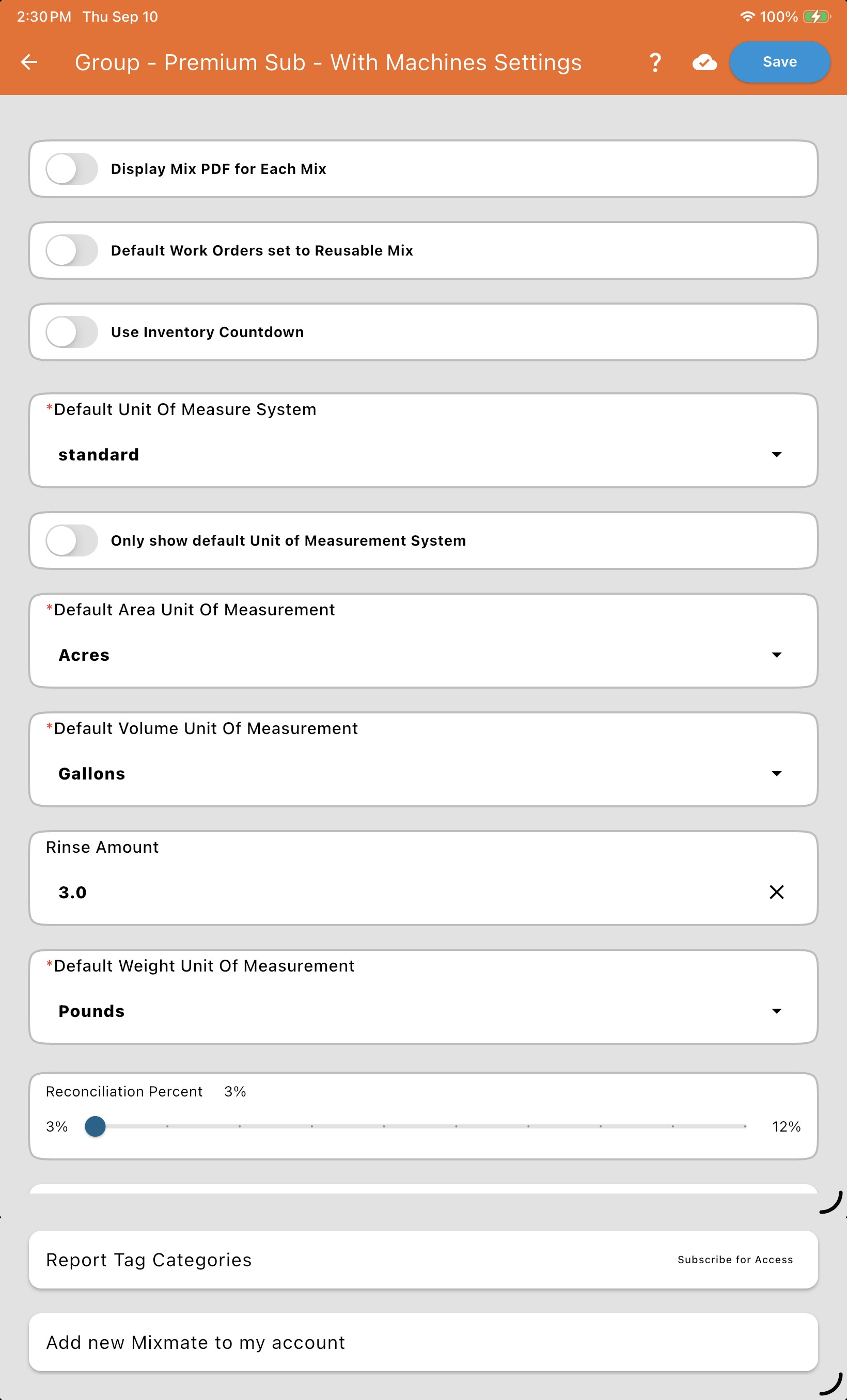
Display Mix PDF for Each Mix (included at Basic and above): When toggled ON, Mixmate automatically generates a PDF report as soon as a mix is saved. This is ideal if you need to print physical copies for operators immediately after a load.
Default Work Orders set to Reusable Mix (included at Basic and above): Toggles whether new Work Orders default to "Completable" or "Reusable."
Tip: Turn this ON if you primarily use standard recipes or prescriptions rather than one-time jobs.
Use Inventory Countdown: Add-on at Full tier; included automatically at Premium. Turns on the group-wide inventory tracking described in Managing Current Inventory.
Below: the full page at the Included tier (most toggles locked), then at Premium (fully unlocked) — Basic sits in between, with the first two toggles unlocked but Use Inventory Countdown still locked.
Units and Measurements
Default Unit of Measure System: Select either Standard or Metric. This prioritizes your preferred system at the top of selection lists.
Only Show Units in Default System: If toggled ON, Mixmate will hide units from the non-selected system (e.g., hiding liters if you are set to Standard).
Default Unit Presets: Set your standard defaults for Area (e.g., Acres), Volume (e.g., Gallons), and Weight (e.g., Pounds).
Rinse Amount (Optional): Sets the default rinse amount in two places: it’s the Rinse Amount given to Products imported through a connected API, and it’s the rinse amount used by Target Mode at the Included tier, where there’s no Product record to carry its own Rinse Amount.
Note: This changes your organization’s default display units. To change the unit of measure for a single product instead, see the Display Unit of Measurement field under Advanced Settings on that product.
Reconciliation Window
Included at Basic and above — at the Included tier, the Reconciliation Percent slider is locked.
Reconciliation is aligning the measured amount with the container size of the product when rinsing the container during a handpour product in the inductor. The purpose of reconciliation is to keep inventory creep of small containers to a minimum.
Here is the link on how to set the container size on the product (also activates continuous flow button): Set Container Size
The Reconciliation Percent setting controls the size of the window around the container size in which the current measurement will jump to the container size when rinsing the container. The slider ranges from 3% to 12%.
Example 1: The reconciliation percent is set to 3% and the container size is 2.5 gallons. This means that if the current measurement is between 2.43 gallons and 2.57 gallons when the container rinse is started, the measurement will jump to 2.5 gallons.
Example 2: The reconciliation percent is set to 5% and the container size is 2.5 gallons. This means that if the current measurement is between 2.38 gallons and 2.62 gallons when the container rinse is started, the measurement will jump to 2.5 gallons.
API and Data Integration
Note: This section is included at Premium and only appears once your organization has an actual third-party API connection configured — see API Work Orders.
Update API Products on Import: Determines if incoming API data should overwrite existing product details in your System Data. Turn this ON if you manage your master product list in an external software platform.
Adding a Machine
The Add new Mixmate to my account card lets you scan the QR code on a newly received machine to start transferring it into your account. This only works for a machine that’s still sitting in a dealer’s inventory — it cannot be used for an end-user-to-end-user transfer.