Admin
The Admin Tab is the central hub for managing your user session, group settings, and support access. It provides visibility into your current system status and ensures you are running the most up-to-date version of the software.
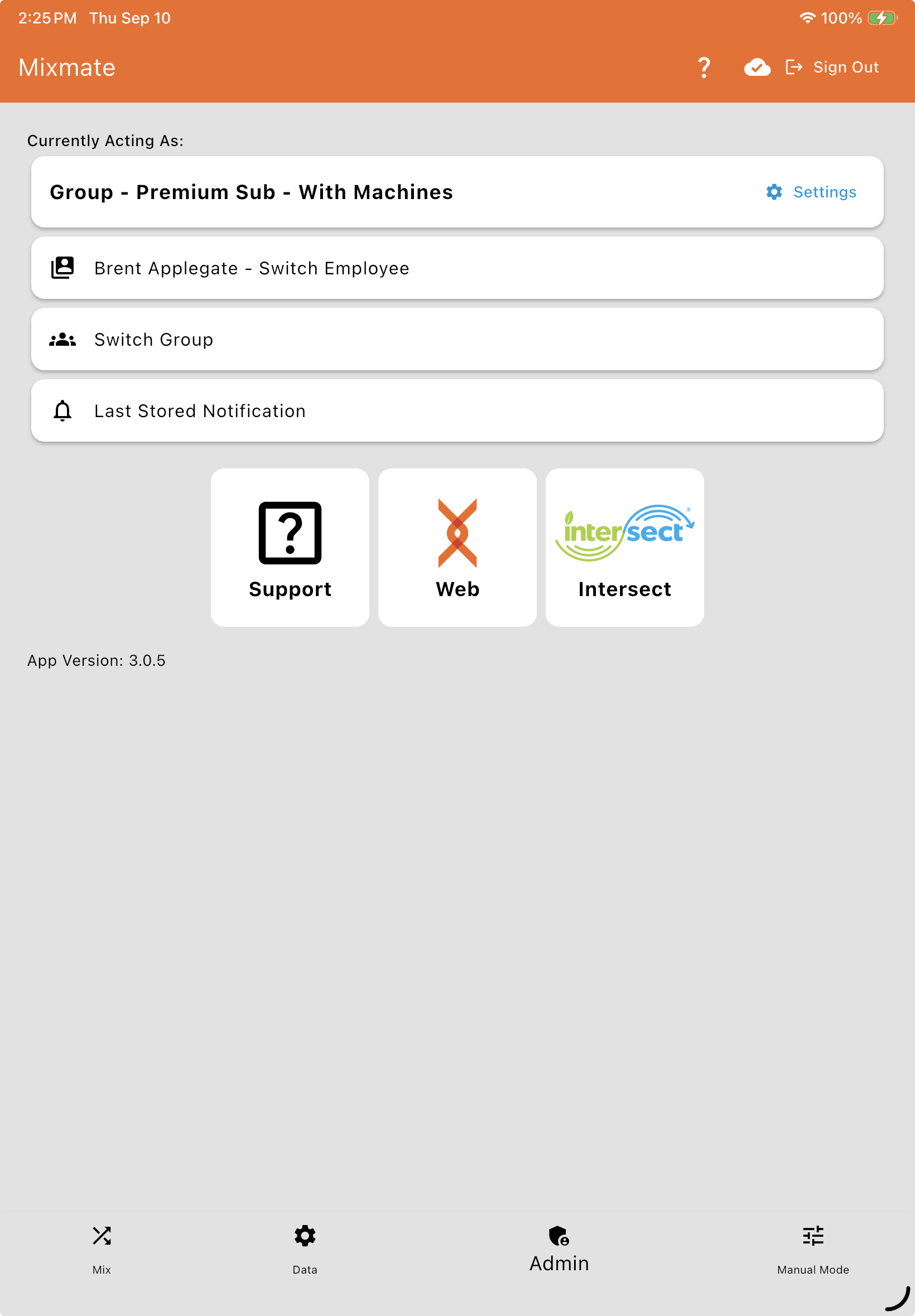
Session and Group Management
Sign Out: Clears all app data and user associations. Note: Signing out forces a cloud sync first, so you must be connected to the internet to sign out.
Current Group Card: Displays the group currently active on the device. Selecting this card opens the Group Settings page.
Switch Employee Card: Visible if multiple users are authorized for the group. This shows who is currently active and allows for a quick user swap.
Switch Group Card: Visible if your account has access to multiple groups, allowing you to move between different organizations or locations.
Sign in a Device Card: Signs another tablet in for an operator who has no email and password of their own, using the code shown on that tablet. On a tablet, only the person who signed it in sees this card, on their own profile. See Sign in a Device.
Why can’t I see Sign Out?
If you don’t see a "Sign Out" option, it’s due to the security hierarchy of the system: only the Admin User who originally signed into the app on that specific device has the authority to sign out. This prevents unauthorized users or lower-level profiles (like Mix Only or Reference Users) from accidentally or intentionally disconnecting the machine from the company’s cloud account.
If the original Admin is unavailable and you need to sign in with a different administrative account, you have two options:
Original Admin Sign-Out: The user who first activated the device must navigate to the Admin Tab and select Sign Out.
The "Clean Slate" Method (Uninstall): If you cannot access the original Admin’s credentials, anyone with physical access to the tablet can uninstall the Mixmate App from the device.
Uninstalling the app clears all local session data and "forgets" the previous Admin.
Once you reinstall the app from the App Store or Google Play, the "Sign In" screen will reappear, allowing a new Admin to take control of the device.
Remember: Admin Users are those with sign-in capabilities for both the Intersect portal (intersect.mixmate.com) and the Mixmate App. If a user is only a "Mixmate Profile" and not an "Admin User," they will never see the sign-out option.
Data and System Status
Unimported Work Orders
The API Work Orders card — which lists any API-based Work Orders that failed to import automatically due to missing information — is only visible in the Web App’s Admin tab (app.mixmate.com); it does not appear on the tablet app, regardless of tier. See API Work Orders for how to resolve them.
Last Notification Stored
Displays the most recent notification received by this specific device since installation. Note that this reflects the device’s history, not necessarily the most recent global alert sent.
App Version
Shows the version of Mixmate currently installed. Technical support may request this number to help troubleshoot any issues.
Mixmate Support
If you need assistance, the Mixmate Support card provides direct access to help resources:
Documentation: Link to comprehensive support articles.
Phone Support: Call 712-587-9723.
Hours: Monday – Friday, 8 am to 5 pm (Central Time).
Note: If operators are busy, please leave a message; calls are returned in the order they are received.
Email Support: Send inquiries to support@praxidyn.com.
Two more shortcuts sit next to Support: Web opens the Mixmate Web App (app.mixmate.com), and Intersect opens the Intersect portal (intersect.mixmate.com).