Advanced Inventory
Tier: Premium — Add-on (purchased separately; not bundled by default).
Advanced Inventory keeps a separate inventory for each product at each Mixmate: how much of a product is at that machine, whether or not it's on one of its inputs yet. Each Mixmate counts down its own inventory as it mixes, so one machine's mixes never change another machine's numbers.
Once Advanced Inventory is part of your subscription, it replaces the single per-product countdown described in Managing Current Inventory. A product no longer has one Current Inventory value; it has one for each Mixmate.
1. Before You Start
Section titled “1. Before You Start”Use Inventory Countdown must be turned on in Group Settings. With it off, nothing is counted down and no low product warning is shown.
Set a Container Size on your products (see Products). It's what inventory is counted in, and it's needed for the container counts, the Set to Container Size button and the low product warning.
2. How It Compares to the Inventory Countdown
Section titled “2. How It Compares to the Inventory Countdown”| Inventory Countdown | Advanced Inventory | |
| Inventory kept | One number per product, shared by every Mixmate | One number per product at each Mixmate |
| Where it's set | The product, or Mix Preview | Verify Inventory for Work Orders, the product (for each Mixmate), or Mix Preview |
| Several tablets mixing | Every tablet, on every Mixmate, subtracts from the same number, so it drifts unless every tablet syncs between mixes | Tablets on different Mixmates subtract from different numbers and don't affect each other. Tablets mixing on the same Mixmate still share its number |
Note: Advanced Inventory can still drift when more than one tablet mixes on the same Mixmate, because each tablet only learns what the others used once they sync. If several tablets run one Mixmate, follow the same routine as the countdown: sync before and after every mix (see Managing Current Inventory and How do I sync my data).
3. Setting a Mixmate's Inventory
Section titled “3. Setting a Mixmate's Inventory”There are three places to set or correct how much of a product is at a Mixmate:
Verify Inventory for Work Orders (before loading)
Section titled “Verify Inventory for Work Orders (before loading)”The quickest way to get a machine ready: pick the Mixmate and the Work Orders it will mix, see how much of each product is needed against what's there, and add what you load. See Verify Inventory for Work Orders.
On the Product
Section titled “On the Product”Open the product from the Products page (Data tab) and tap Advanced Settings.
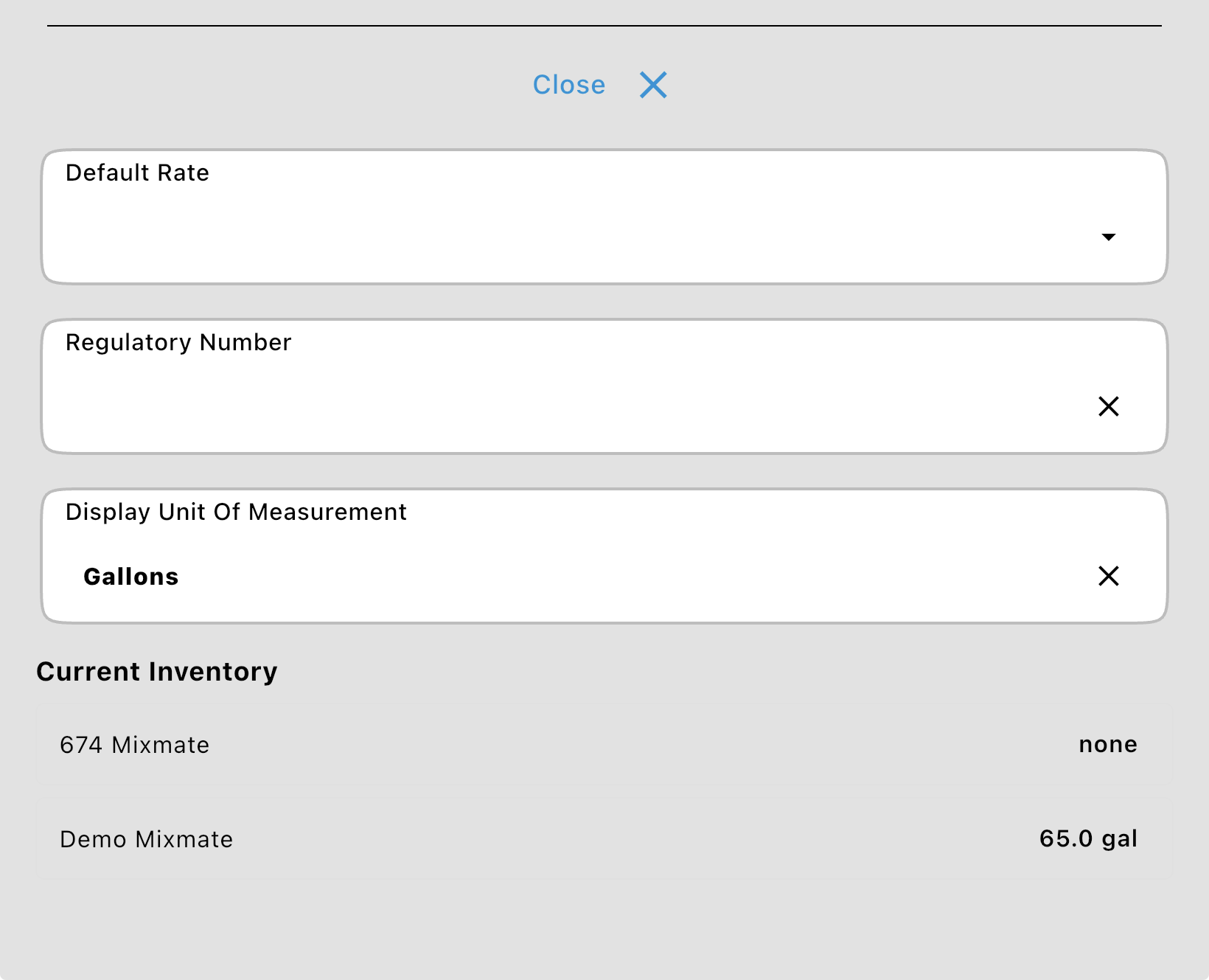
Under Current Inventory, every Mixmate is listed with its inventory of this product (or None).
Tap a Mixmate to set its inventory. Type the amount, or use Set to Container Size (a full container) or Clear Inventory (stop tracking this product at this Mixmate), then tap Save.
Note: The product must be saved first, and setting inventory here needs a user who can edit data.
In Mix Preview
Section titled “In Mix Preview”On the Mix Preview page, press the pencil icon floating action button in the bottom-left corner to switch the product cards into edit mode, then tap the Current Inventory button on the product's card. The same Set to Container Size and Clear Inventory buttons are there, and the change applies to the Mixmate you're mixing on.
4. Low Product Warning and Countdown
Section titled “4. Low Product Warning and Countdown”These work the same way as with the inventory countdown, using the inventory at the Mixmate you're mixing on:
Low Product Warning: when you start a mix from Mix Preview, each product is checked against that Mixmate's inventory, and the warning appears if there isn't enough or the mix would leave less than 10% of a container.
Countdown: when the mix is saved, the amount of each product used is taken off that Mixmate's inventory.
Only products with an inventory set at that Mixmate are checked and counted down. A product with none (or one you've cleared) isn't tracked there.
Common Questions
Section titled “Common Questions”The Current Inventory field on my product turned into a list of Mixmates.
That's Advanced Inventory: each Mixmate now keeps its own inventory of the product. Set each one from the list, or from Verify Inventory for Work Orders.
Why isn't my inventory counting down?
Check that Use Inventory Countdown is on in Group Settings and that the product has an inventory set at the Mixmate you mixed on.
Another tablet shows a different number.
The tablets haven't synced since the last change. Sync both and the numbers will match.
I don't have Advanced Inventory.
Advanced Inventory is a Premium add-on. To add it, sign in to Intersect and update your subscription, then sync the Mixmate app.