Report Tag Categories
Tier: Premium — Add-on (purchased separately; not bundled by default).
A Report Tag Category is used to define the specific type of data being collected via Report Tags. While nesting tags (Sub Tags) helps organize your data, Categories allow you to enforce data integrity by requiring certain information before a mix can be finalized. Common examples: Customer, Grower, Farm, Field, Crop Year, Crop Type.
To add one, navigate to the Group Settings page and find the Report Tag Categories card, then press the blue "+" button. Give it a Report Tag Category Name (e.g., "Crop Year") — this appears in the dropdown when creating individual Report Tags. Toggling Apply to Every Mix ON forces the operator to select a tag from this category before they can save the mix as complete.
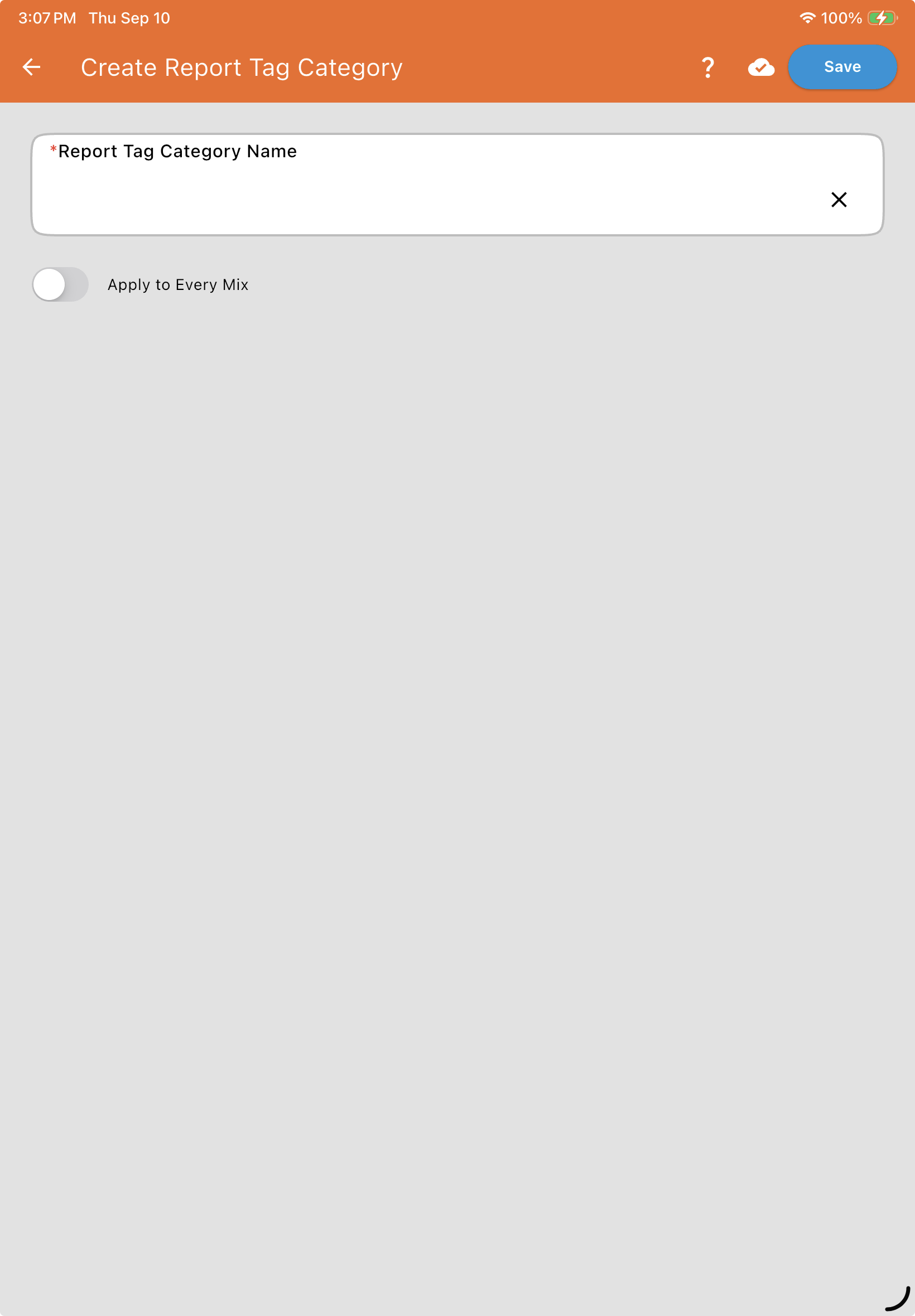
Nesting vs. Categories: Nesting (Sub Tags) is for organization — it creates a visual hierarchy, like clicking a Grower to see their Farms. Categories are for validation — if you want to guarantee your records never miss a "Crop Year," create a "Crop Year" category and turn on Apply to Every Mix.
Example: A custom applicator wants to make sure they never forget to tag a mix with the customer it was performed for. They create a "Customer" category and turn on Apply to Every Mix — now every mix requires a Customer tag before it can be saved, and at the end of the year they can reliably filter and total up every mix done for a given customer.