Valve and Flowmeter Fields
Every valve and flowmeter in a Mixmate's configuration is entered the same way, wherever it appears (Assemblies, Custom Inputs, Mix Actions and Pre/Post Mix). This article explains each of those fields once; the other configuration articles link back here.
Valve Type
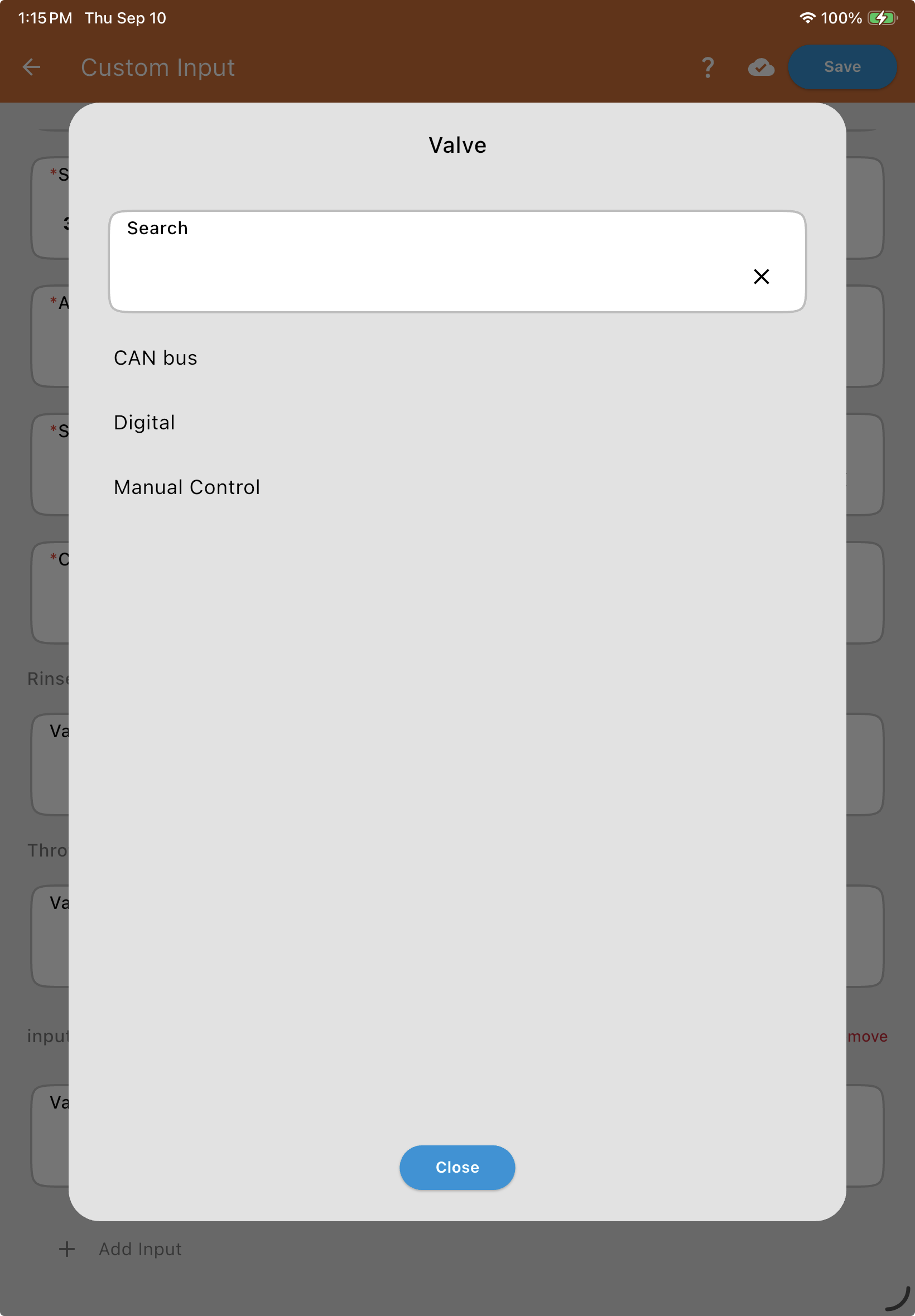
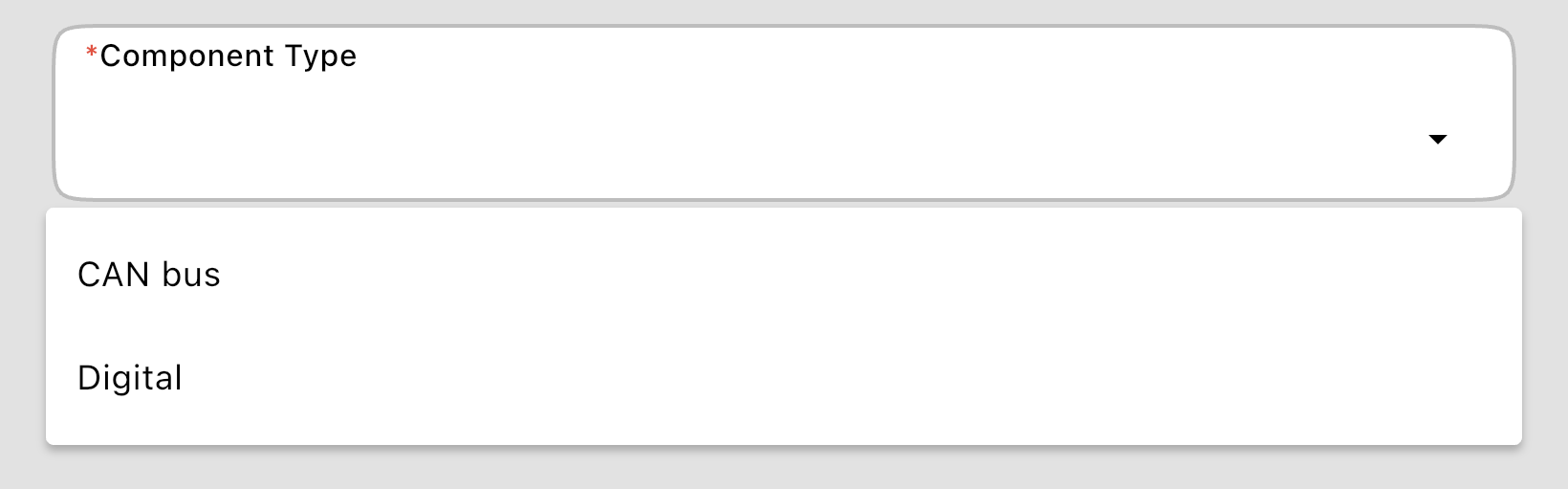
Section titled “Valve Type”Choose how the valve is controlled: CAN bus (the valve has its own module and QR code) or Digital (the valve is wired to a port on a module). Some places also offer Manual Control, for an input with no automated valve. In Mix Actions and Pre/Post Mix this dropdown is called Component Type, because the component there can be a pump or another device, not only a valve.
Valve Information (QR Code) — CAN bus valves
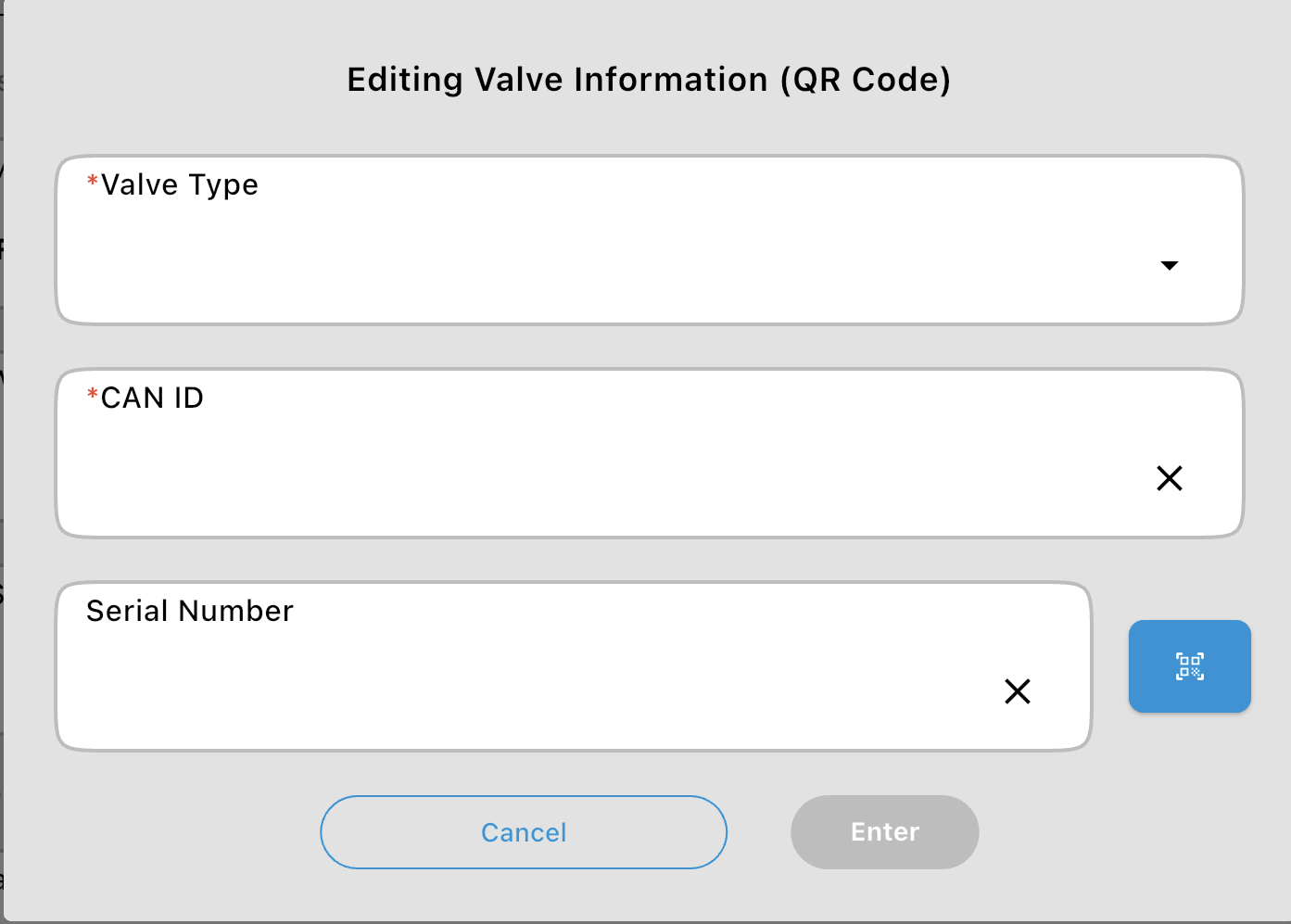
Section titled “Valve Information (QR Code) — CAN bus valves”A CAN bus valve is entered in one field, Valve Information (QR Code), which shows its CAN ID and, once entered, its serial number (for example, 4001 2-way Valve · S/N 123456). There are two ways to fill it in:
Scan: tap the scan button and scan the QR code on the valve. The scanner then stays open for the valve's bar code (its manufacturer's label), so you can record its serial number at the same time. Go back to skip the bar code and keep the serial number already entered.
Type it in: tap the field. The window has the Valve Type (2-way or 3-way), the CAN ID (the number on the valve's QR code) and the valve's Serial Number.
Wired To — digital valves and flowmeters
Section titled “Wired To — digital valves and flowmeters”A digital valve or a flowmeter is wired to a port on a module. Wired To holds both in one field, showing the module and the port (for example, 1234 Inductor Module · Port 3):
Scan: tap the scan button and scan the module's QR code. The window opens with the module filled in; pick the Module Port and tap Enter.
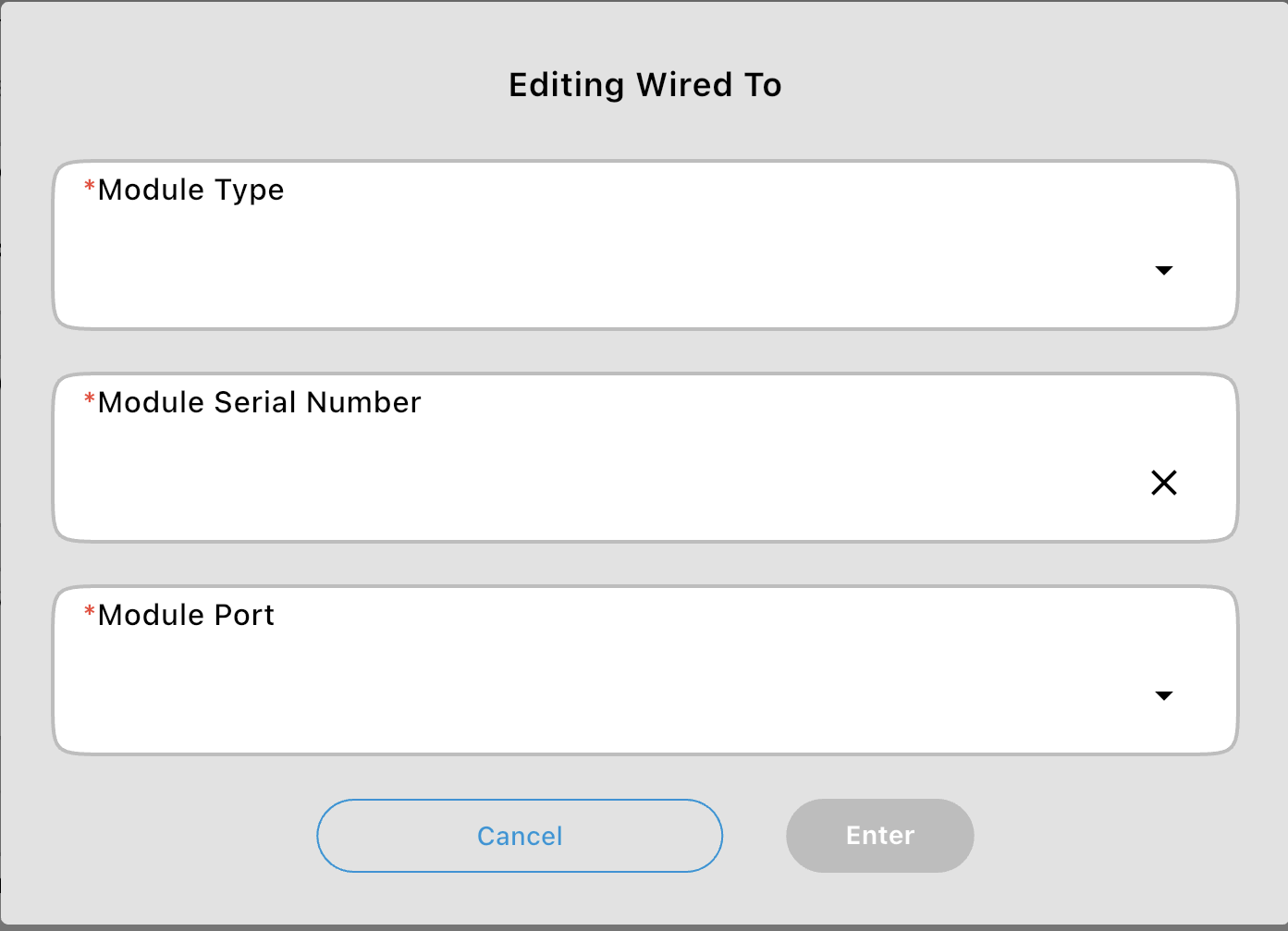
Type it in: tap the field. The window has the Module Type, the Module Serial Number and the Module Port. Enter stays greyed out until a port is picked.
A mass flowmeter's Wired To holds only its module: its volume and weight ports are entered separately, each with its own calibration factor.
Serial Number — the valve's own serial number
Section titled “Serial Number — the valve's own serial number”Every valve also has a Serial Number field for the valve manufacturer's serial number, printed on the bar code label on the valve. Type it in, or tap the scan button and scan the bar code. Mixmate QR codes are skipped by the scanner, so pointing it at a valve's QR code by mistake won't fill this in: it keeps looking until it reads the bar code. For a CAN bus valve, the serial number is entered with its Valve Information (above).
The serial number is optional, but it lets Mixmate support handle a warranty claim for the valve. When you replace a valve, enter the new valve's serial number.
A flowmeter's own code
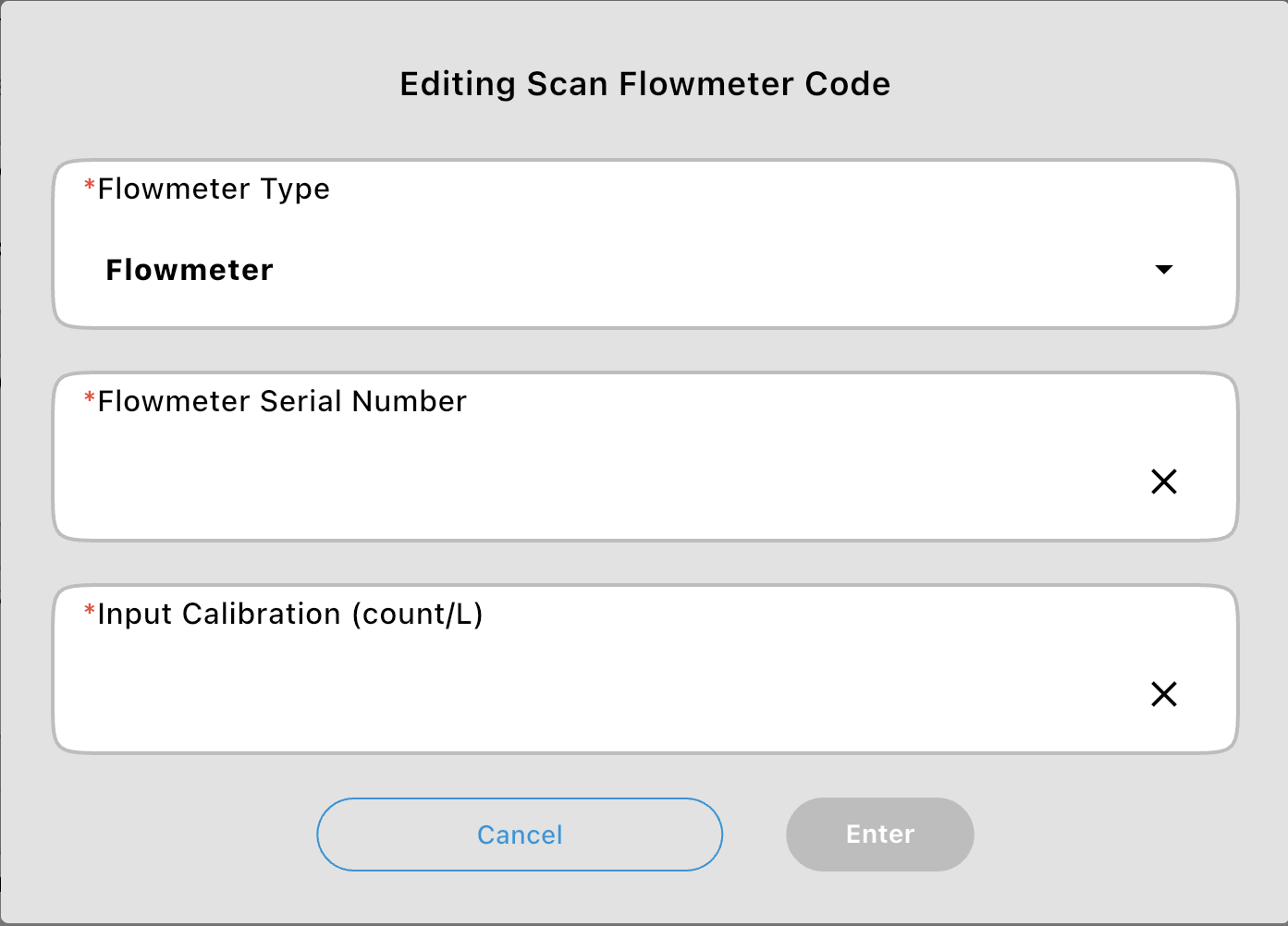
Section titled “A flowmeter's own code”A flowmeter has its own QR code, separate from where it's wired. Scan it, or tap the field and enter the Flowmeter Type, the Flowmeter Serial Number and the Input Calibration (count/L) printed on it.
Common Questions
Section titled “Common Questions”Where did the Port field go? A digital valve's or flowmeter's port is now part of Wired To, entered together with its module.
I scanned the valve's QR code but the Serial Number didn't fill in. The serial number comes from the valve's bar code, not its QR code. After scanning the QR code, scan the bar code on the manufacturer's label too, or tap the field and type it in.