Creating a Work Order
A Work Order is your plan. It tells the system exactly what to mix and how much to use. You must have a work order before you can run a mix.
Note: You can create work orders in the Mixmate App or on the Web App (app.mixmate.com).
Before you begin: Make sure your Products are already entered in the system. You cannot add a product to a work order if it doesn't exist yet.
Here is the full Create a Work Order form, top to bottom:
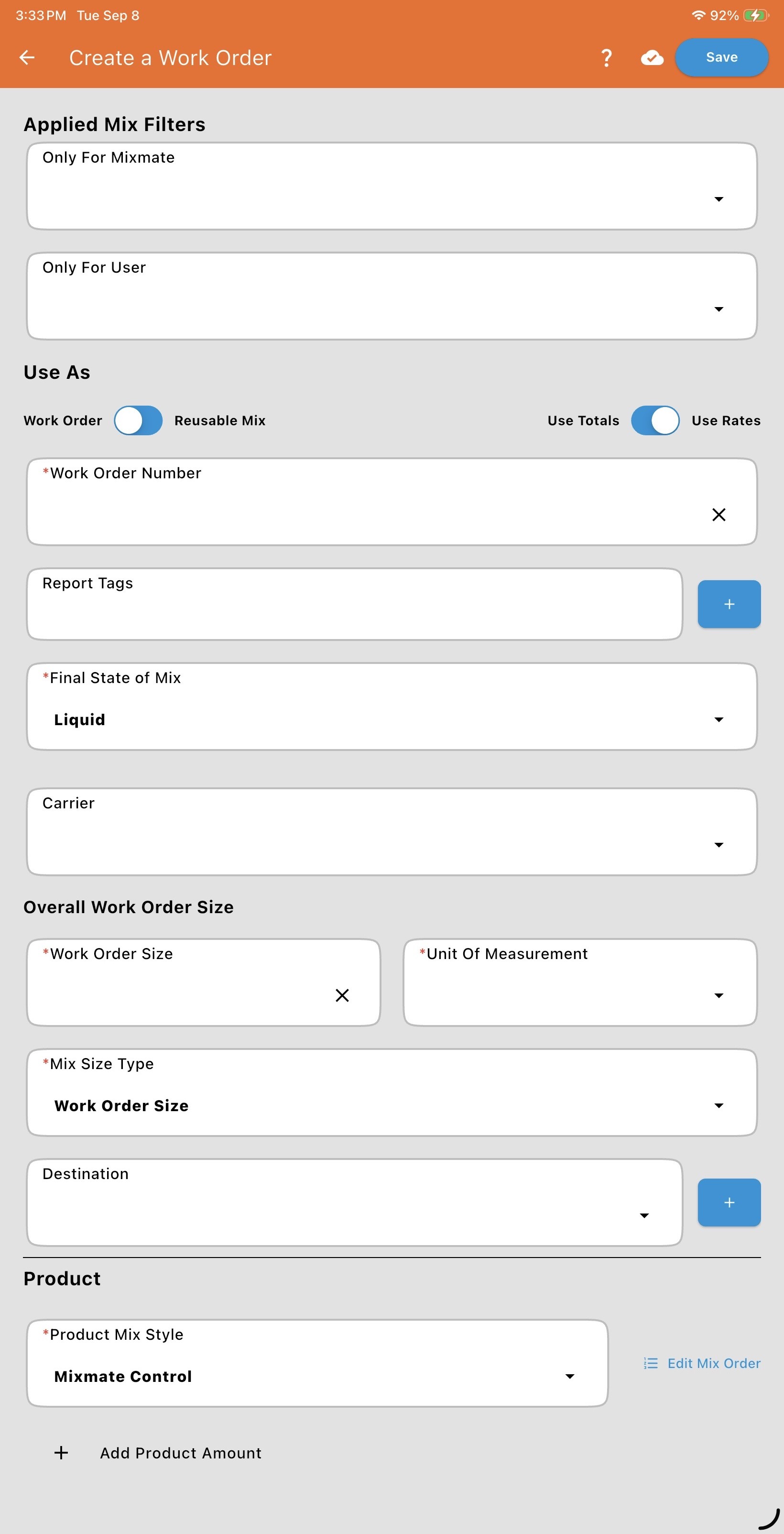
1. Applied Mix Filters (Premium)
Section titled “1. Applied Mix Filters (Premium)”Filters help organize workloads and prevent operators from accidentally selecting the wrong Work Order in the field. You can optionally assign a Work Order to a specific Mixmate or Operator:
Only for Mixmate: Limits the Work Order to a specific machine, filtering the Work Order selection on the Mix tab by whichever Mixmate is currently selected. This is useful if you operate multiple Mixmate units and certain Work Orders are tied to specific plumbing. Leave it blank to make the Work Order available to all your Mixmates.
Only for User: Restricts the Work Order so it only appears when a specific operator is signed into the Mixmate app.
If you leave both blank, the Work Order is visible to everyone on your team.
2. Choosing the Correct Work Order Type
Section titled “2. Choosing the Correct Work Order Type”When you create a Work Order, you must decide how it will be used and how the math will be calculated.
Use As: sets what kind of job this is: a Work Order (Completable) for a job with a set amount to finish, a Reusable Mix for a recipe you mix again and again, a Repack for filling containers from bulk, or a Template for one plan across many fields (Repack and Template are Premium add-ons). See Work Order Types for how they compare.
Rate vs. Totals:
Use Rates (Recommended): This is the most common and flexible option. You define the application rate for each product, and Mixmate scales the amounts automatically based on your mix size.
Use Totals: Use this for ratio-based mixes or when you know the exact total amount of each product you want in the final solution. Use Totals is the most common selection for liquid fertilizer mixes along with Sequential product mix style to control the dispensing process.
3. Filling Out the Main Work Order Data
Section titled “3. Filling Out the Main Work Order Data”Fill out the form to define your plan. Only fields marked with a red asterisk (*) are required for the Work Order to run correctly — this holds true across every data entry form in the app, not just this one. Every other field below is optional; it exists to add detail to your records or to make them easier to search for later.
*Work Order Number — the name displayed in selection menus. This is a string, so it can include letters and numbers (e.g., "North 40 Corn").
Report Tags — attach searchable identifying information like Crop Year, Crop, or Pass Type. See Report Tags for the full breakdown. Note: If a selected Report Tag has an Area defined, the app will offer to set the Work Order Size below to the total area of all selected Report Tags.
*Final State of Mix — choose whether the final solution is Liquid or Dry. This defaults to Liquid.
Carrier — the main product that all the other specified products are mixed into. The carrier is typically water; setting it here allows the system to calculate the volume needed to fill in to reach the intended amount to be mixed.
*Work Order Size (Mix Size for Reusable Mix) and *Unit of Measurement — the overall total amount for this Work Order (e.g., "640 Acres"). Or if Reusable Mix, the most common amount to be mixed (e.g., "1200 Gallons").
Application Rate Value and Rate (Both Shown and Required with Carrier) — the intended application rate for this Work Order (e.g., "15 Gallons/Acre").
*Mix Size Type (Only shows when Use As is set to Work Order) — determines how that total is divided into individual mixes:
Destination Capacity: The mix size is based on the volume of the sprayer or tank being filled. If your total Work Order requires 6,000 gallons but your sprayer only holds 1,200 gallons, Mixmate will set the mix size to 1,200 gallons until the final partial load. Note: A destination must be selected to use this option.
Number of Splits: Divides the total Work Order volume into a specific number of equal loads.
User Defined: Allows you to set a specific, static volume for every mix.
Work Order Size: The entire Work Order volume is completed in one single mix.
Destination — the container the Mix is intended to go into. If you are filling many of the same size containers, this is a good opportunity to name it something generic like "3200 Gallon Tank," where the name represents the container size. See Destinations for details. Note: Destinations are included at the Premium tier. Destination is only required when Mix Size Type is set to Destination Capacity above — otherwise it's optional.
4. Product Mix Styles
Section titled “4. Product Mix Styles”*Product Mix Style determines how the machine introduces products into the carrier stream — see Product Mix Styles for the Mixmate Control, User Control, and Sequential options. It defaults to Mixmate Control.
5. Adding Products and How to Reorder Them
Section titled “5. Adding Products and How to Reorder Them”Add the products you need to the Work Order. Note: The order matters — the machine adds them in the order you list them here. See Changing the Mix Order of Products for how to reorder an existing product list. If you're using Use Rates, see Use Rates for the four rate types you can choose for each product. If you're using Use Totals, see Use Totals for how to add a product and two worked scenarios.
You must add at least one product before you can save. Tap Save once your product list is complete. Your Work Order is now ready to be used in the Mix Setup screen.
Common Questions
Section titled “Common Questions”Why can't I see my work order in the list? This usually happens because of Applied Mix Filters. If a work order is set to Only for Mixmate or Only for User, and you are using a different machine or logged in as a different operator, the system hides it to keep your list clean.
Can I edit a work order? Yes — a Work Order is editable at any time, and any mix you start afterward will reflect your changes. The only thing that becomes locked is an individual mix that has already been started and saved for recovery; that specific in-progress mix keeps the settings it started with, but the Work Order itself remains fully editable.