Kiosk Mode
Kiosk Mode locks a tablet to running Work Orders on one Mixmate, so customers can mix their own orders without help. A customer with kiosk access enters their phone number and PIN, picks one of their Work Orders, and can change only the mix size. Nothing else in the app is reachable until an employee exits with their PIN.
Before You Start
Section titled “Before You Start”The customer: Add them to the Customer List with their phone number, and turn on Kiosk Access.
Their Work Orders: Each Work Order the customer should see needs its Customer set to them and must be set to Only for Mixmate with the kiosk's Mixmate (see Applied Mix Filters). The kiosk only lists open Work Orders: not completed ones, and not Templates or Repacks, which need the full Mix Setup.
Sync: Sync the tablet so it has the customer and their Work Orders.
Starting Kiosk Mode
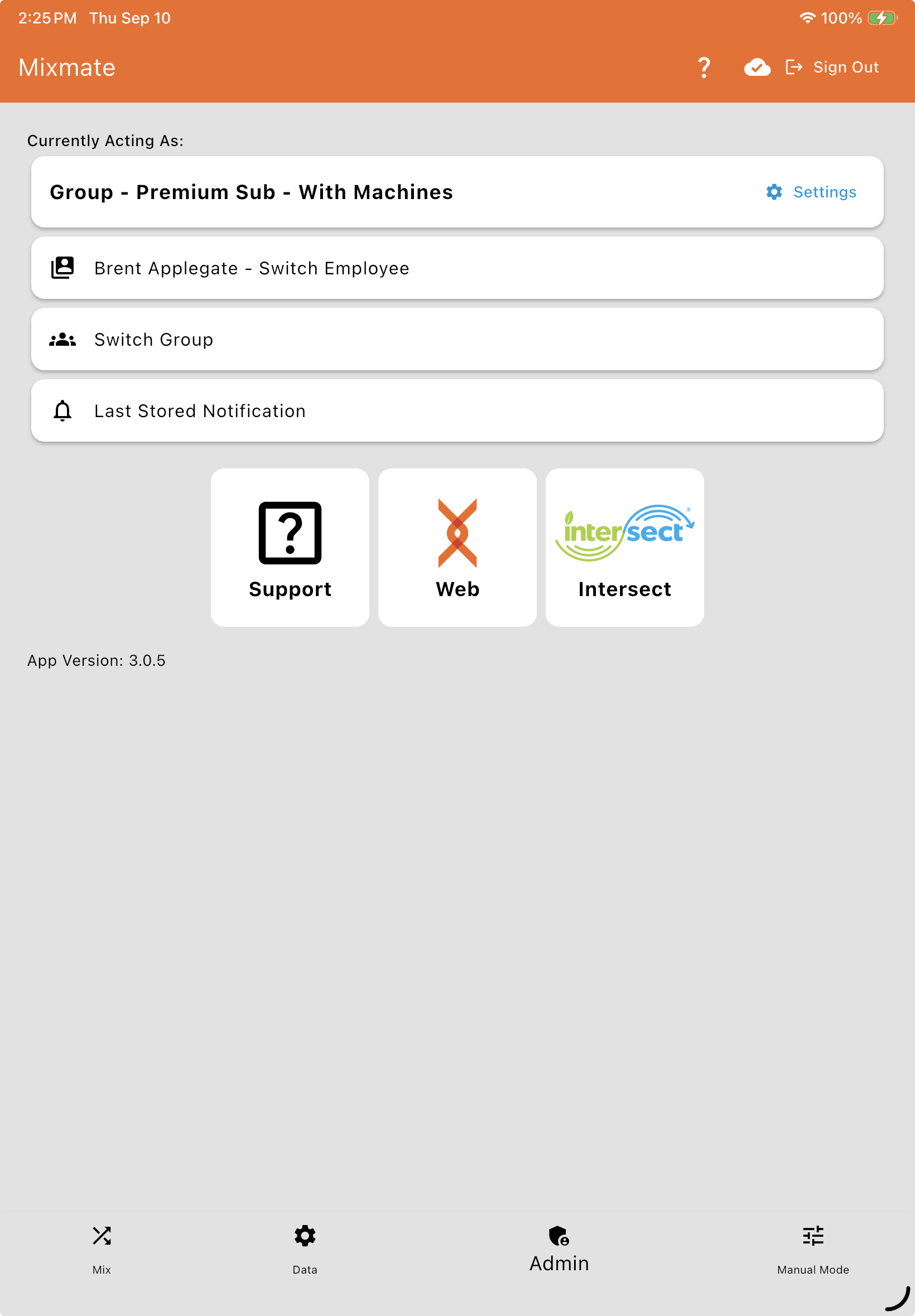
Section titled “Starting Kiosk Mode”On the Admin tab, tap Kiosk Mode.
Choose the Mixmate the kiosk runs on (the last one you mixed with is chosen for you).
Tap Start Kiosk Mode.
Kiosk Mode can only be started by a company signed in as itself, not by a dealer acting as the customer.
What the Customer Does
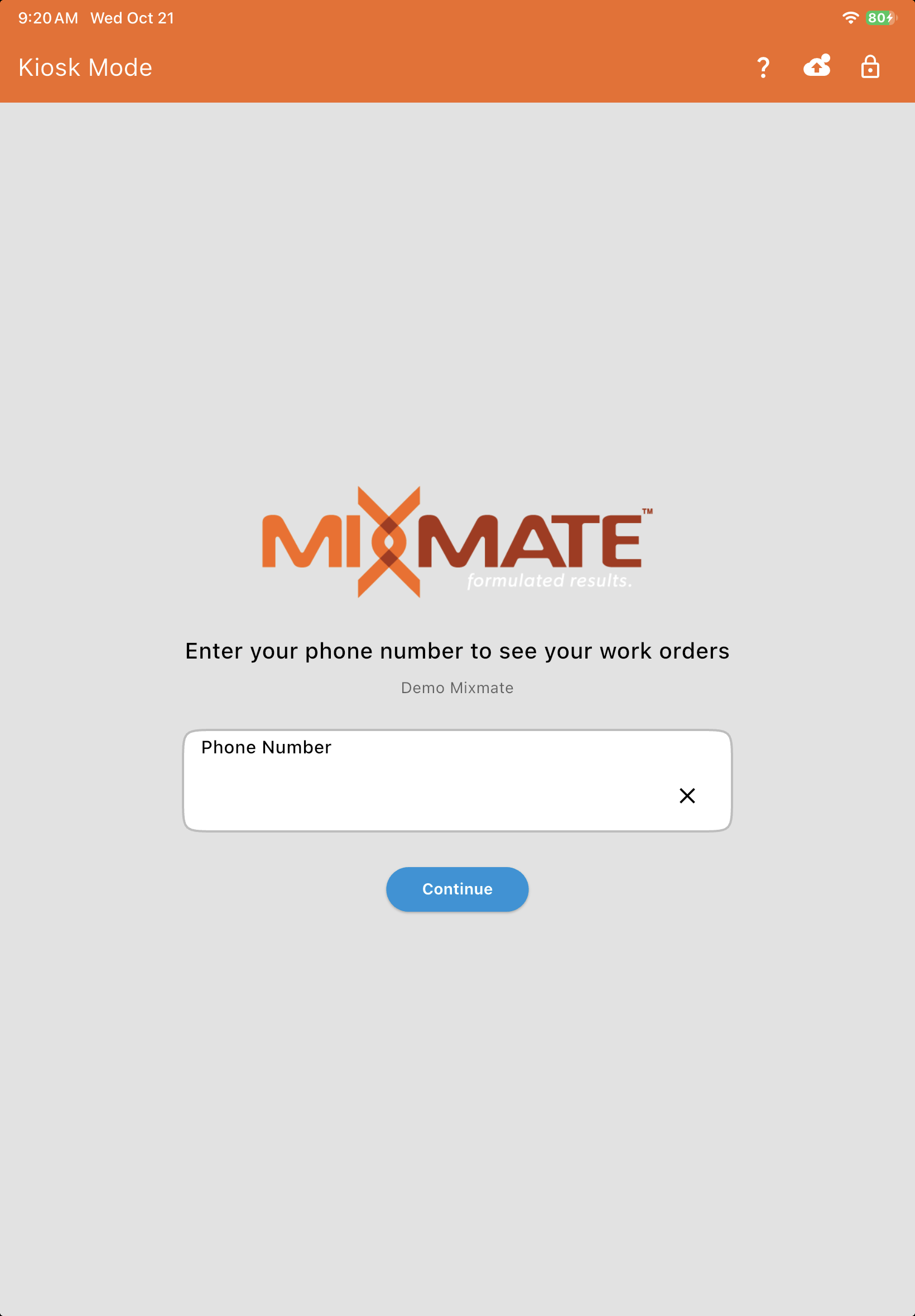
Section titled “What the Customer Does”Phone number: Enter their phone number and tap Continue. If no customer with kiosk access has that number, the kiosk says so (without telling which numbers are customers').
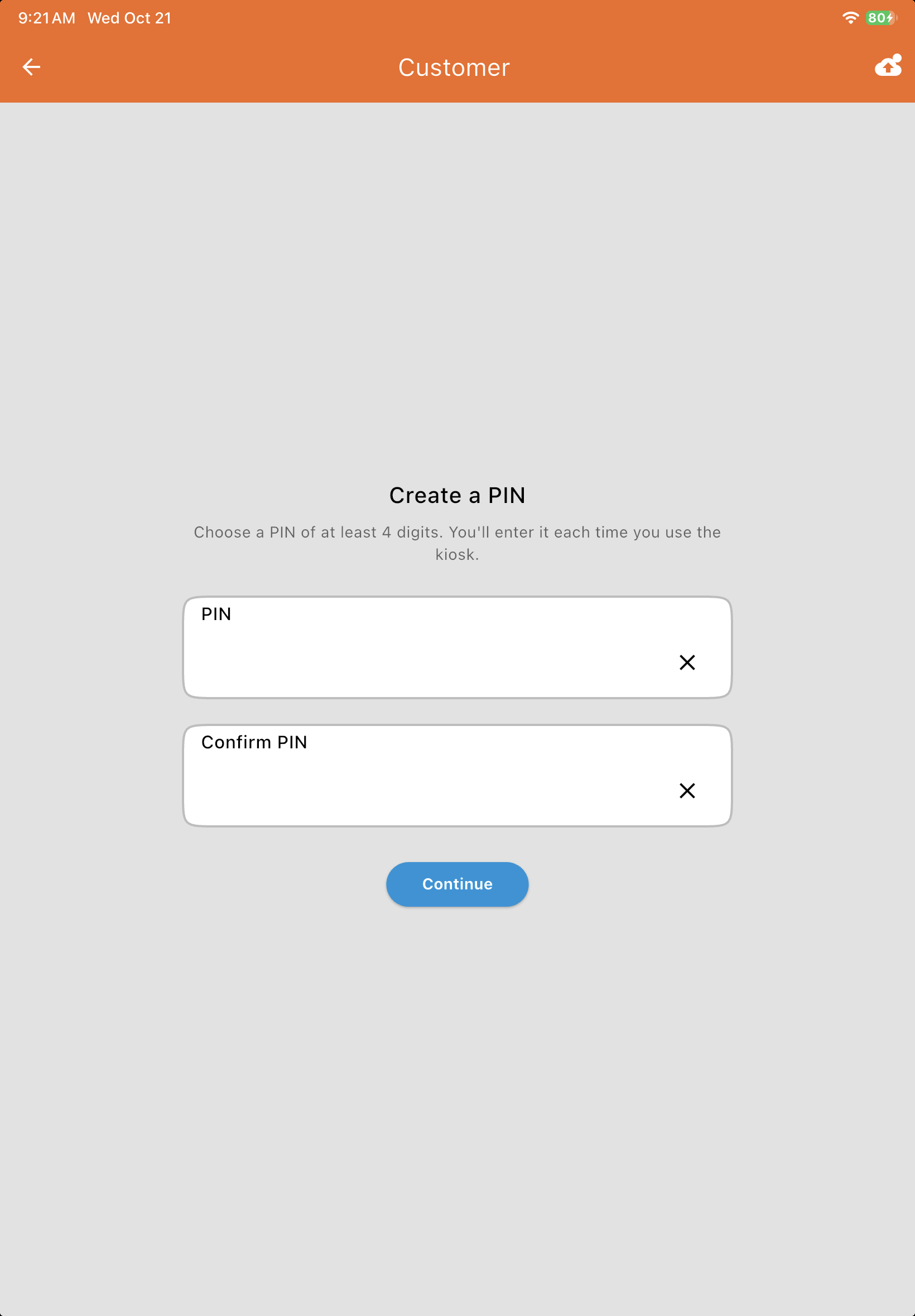
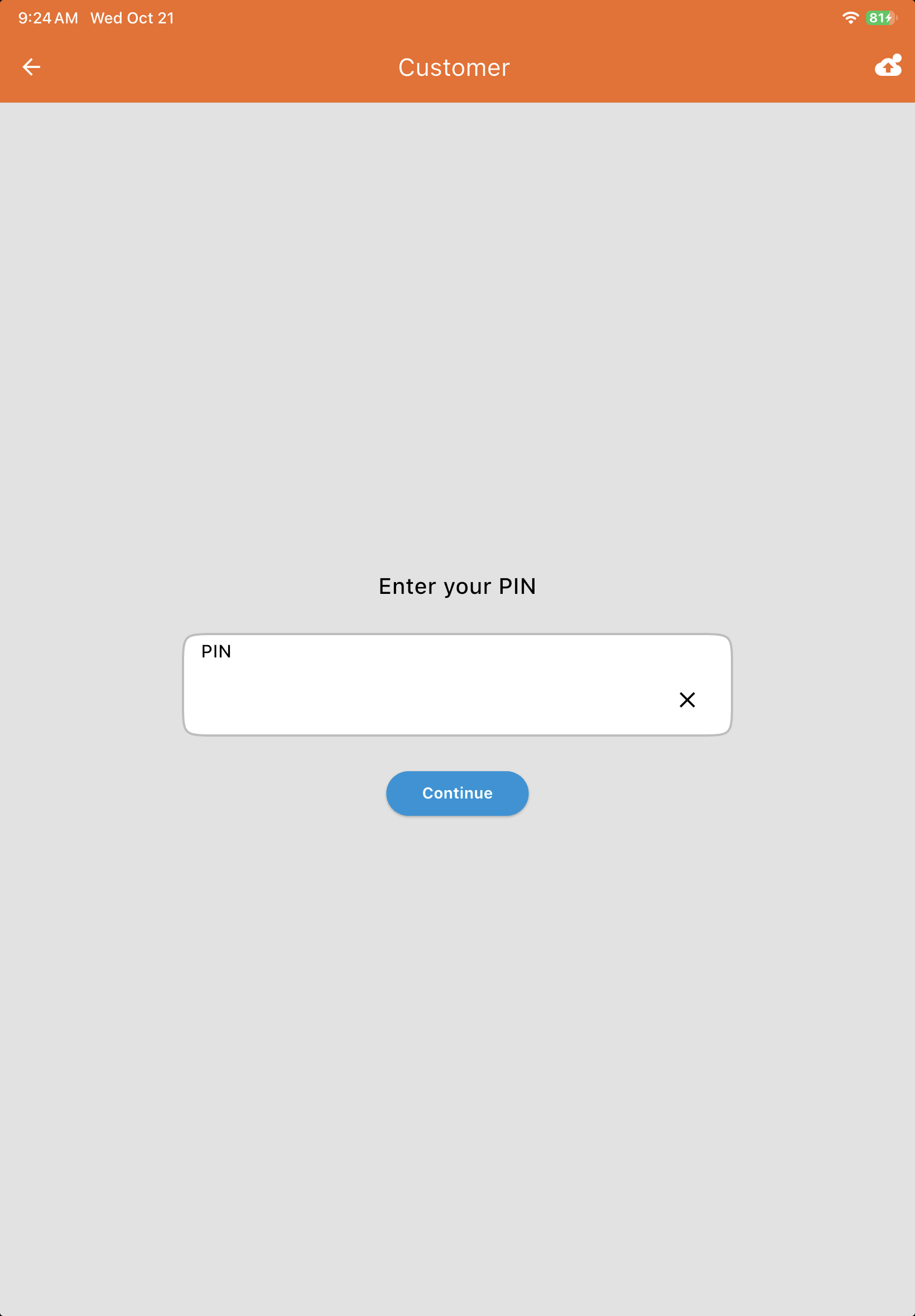
PIN: The first time, they create a PIN of at least 4 digits and enter it twice. After that, they enter it each time.
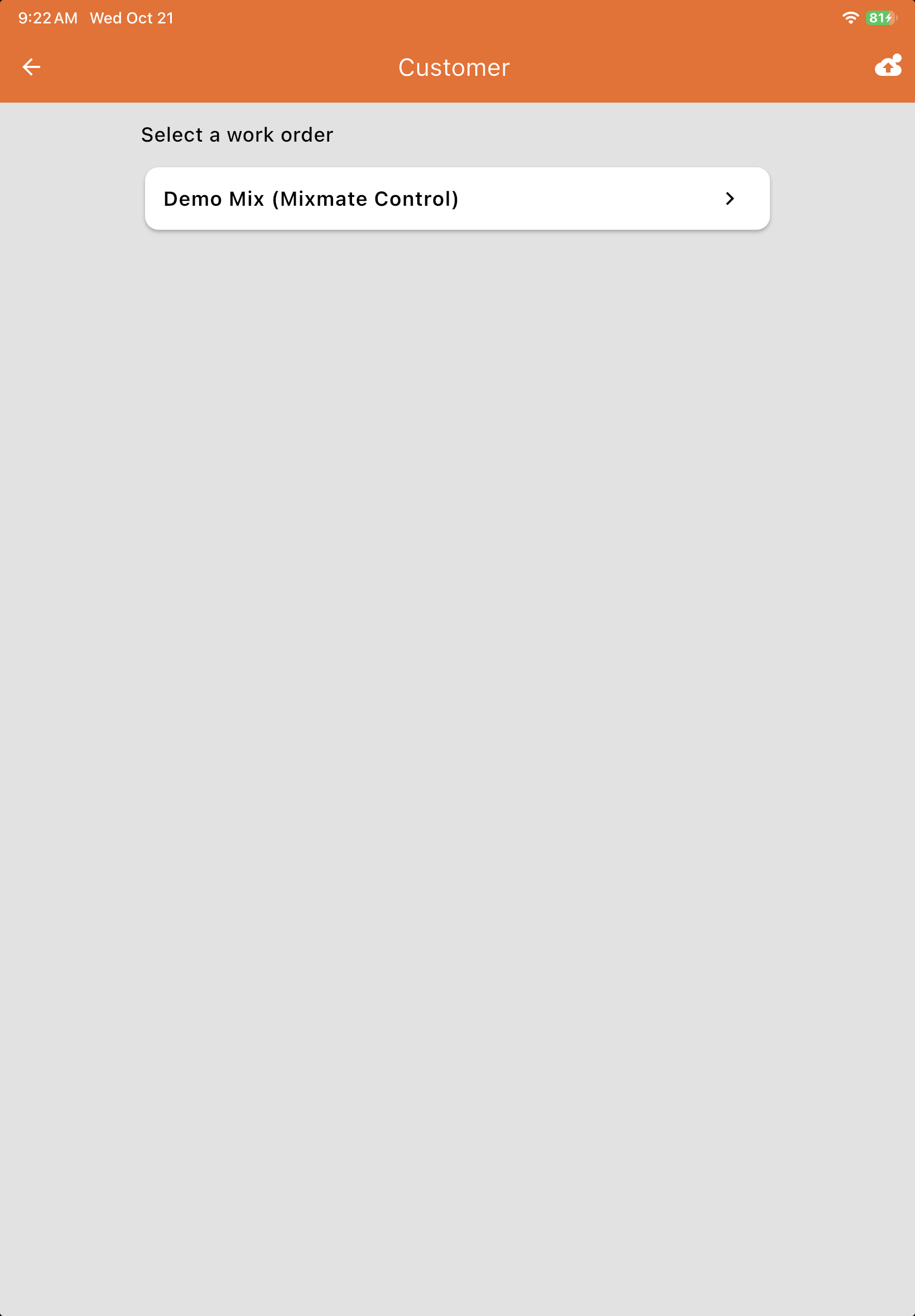
Work Order: Their open Work Orders for this kiosk's Mixmate are listed. They pick one.
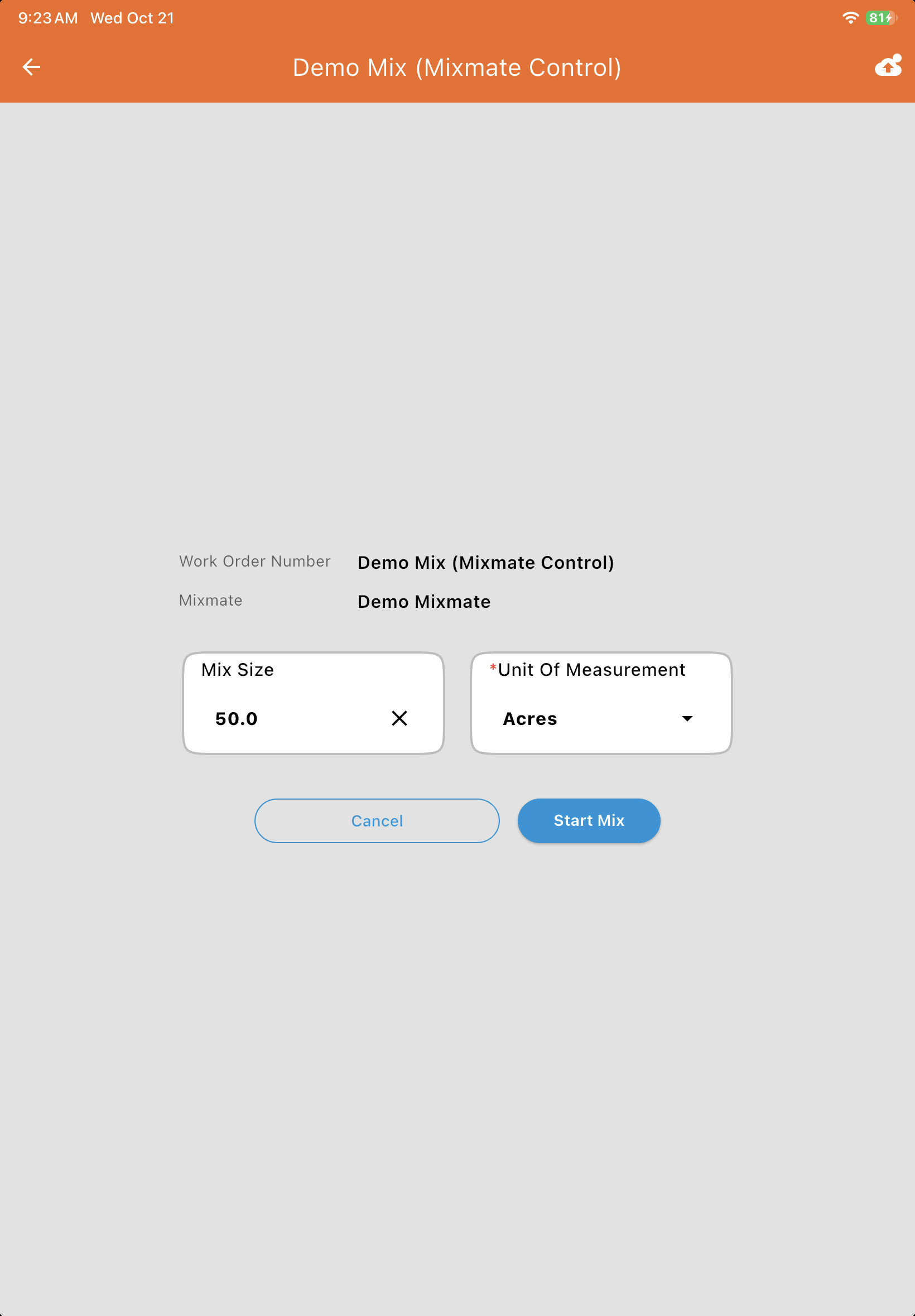
Mix size: The mix size is filled in as usual for the Work Order. They can change the size and its unit, then tap Start Mix.
The mix: The mix runs as usual. When it's done, it's saved automatically and the print window opens for the mix report. If the Work Order is now fulfilled (within your reconciliation percent), it's marked complete. The kiosk then goes back to the phone number page for the next customer.
Exiting Kiosk Mode
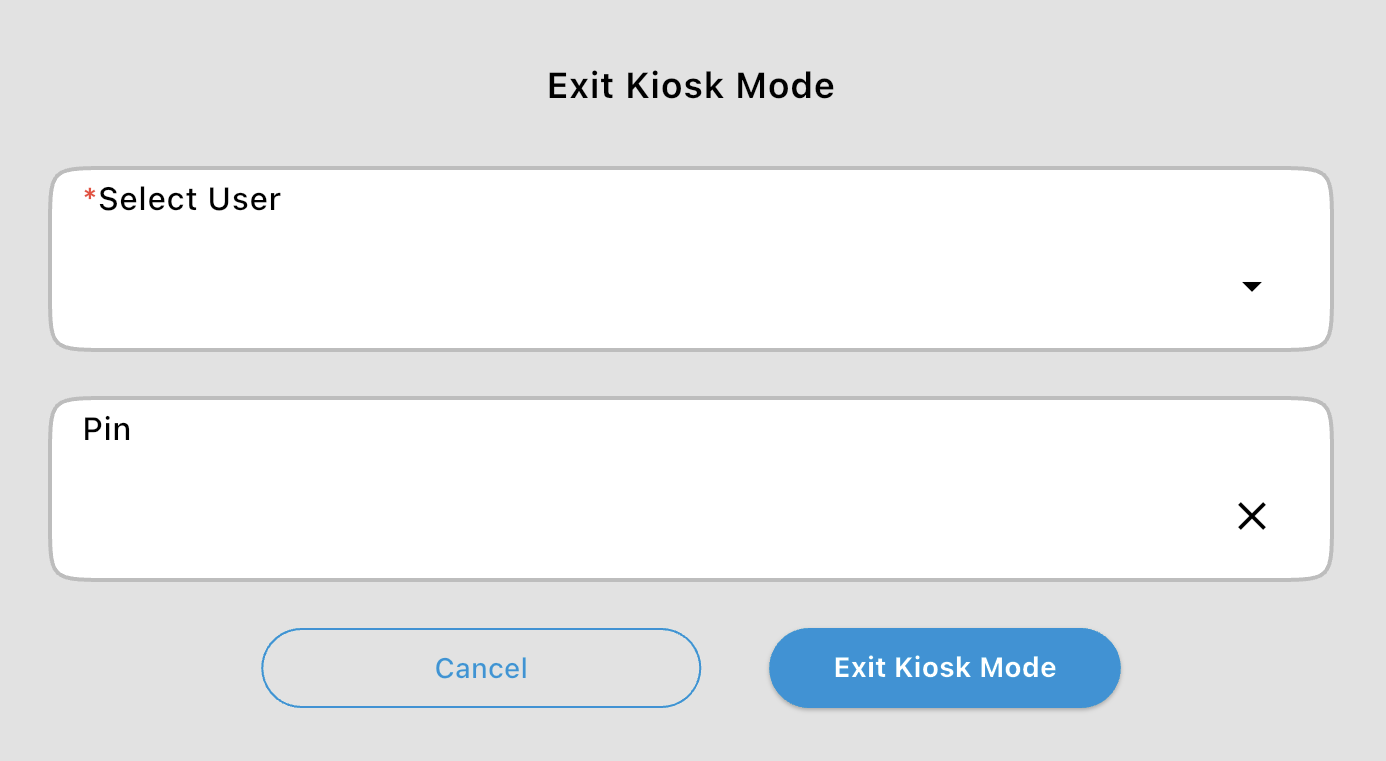
Section titled “Exiting Kiosk Mode”Tap the lock icon in the top corner, choose your name under Select User, enter your employee PIN and tap Exit Kiosk Mode. The app returns to normal.
Common Questions
Section titled “Common Questions”I don't see Kiosk Mode on the Admin tab, or it asks me to subscribe. Kiosk Mode is an add-on and only works once it's part of your subscription. To add it, sign in to Intersect and update your subscription, then sync the Mixmate app.
A customer says none of their Work Orders are listed. Check that each Work Order has the customer set, is Only for Mixmate with the kiosk's Mixmate, is still open, and isn't a Template or Repack, then sync the kiosk tablet.
A customer forgot their PIN. In the Customer List, open the customer, tap Reset PIN, and sync the kiosk tablet. They'll create a new PIN at the kiosk.
The kiosk opened the App Sync window. A kiosk still has to sync at least every 30 days, like any tablet. Connect it to the internet and sync (see How do I sync my data?).