Products
A Product is any material used in a Work Order to create a mix. This includes liquids, dry materials, fertilizers, and carriers (like water). Every product requires a defined density to ensure the system measures it accurately. Note: You can create and manage products in the Mixmate App or on the Web App (app.mixmate.com).
1. Creating a New Product
Section titled “1. Creating a New Product”On the Products page (Data tab), tap the "+" icon in the lower right corner to open a new product form.
Basic Product Entries
Section titled “Basic Product Entries”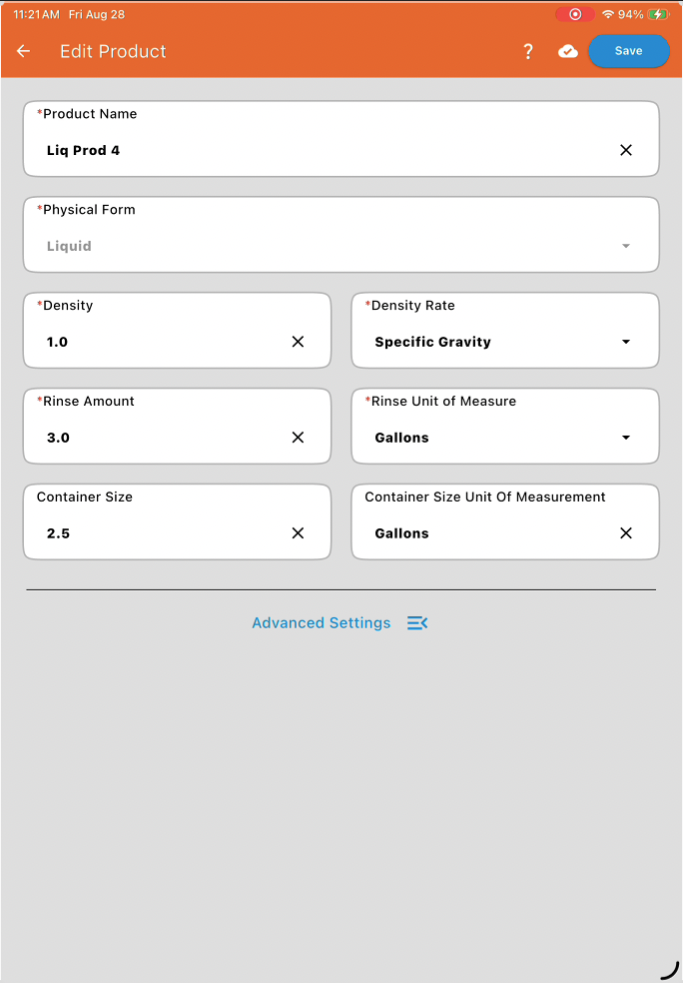
These fields are visible right away:
Product Name*: The name that appears when selecting products for a Work Order — what you call the product (e.g., "Roundup"), not necessarily its official name.
Physical Form: Choose between Liquid or Dry.
Note: If you select Dry, the density is automatically set to 1.0 Specific Gravity.
Density and Density Rate*: The numerical value and units (e.g., lbs/gal) that define the product's weight-to-volume ratio. Product Density is a critical setting in Mixmate that ensures accurate measurement — the machine often measures by weight, but a Work Order usually calls for volume, and density is what lets the system convert between the two. Because products can vary significantly by manufacturer and batch, Mixmate requires you to maintain your own product list to ensure the highest level of reliability.
Why is Density Important?
Section titled “Why is Density Important?”An accurate density is required when weighing a liquid product with a scale (such as an inductor). Since the scale measures weight but the Work Order often calls for volume (gallons, quarts, etc.), the system uses the density to convert that weight into the correct volume.
Tip: If you use a flow-only system without an inductor, you can use a default density of 1 gram/milliliter (the specific gravity of water) for all products.
How to Find a Product's Density
Section titled “How to Find a Product's Density”If you do not have the density on hand, you have two primary options:
Online Search: Use the Agrian Label Center to look up the product label or SDS, which typically lists the density or specific gravity.
Manual Calculation: If you cannot find a density online, you can calculate it manually using your Mixmate scale:
Go to Manual Mode and view the scale reading.
Set an empty jug on the scale and Tare it.
Replace it with a full jug of the product.
Use the formula:

Example: 23.5 lbs / 2.5 Gallons = 9.4 lbs/Gallon.
Fine-Tuning Your Density
Section titled “Fine-Tuning Your Density”If you notice a consistent discrepancy — for example, a 2.5-gallon container is empty but the system reports only 2.42 gallons were poured — you can calibrate the density using this formula:

Example Calculation:
Reported Volume: 2.42 gal
Actual Volume: 2.50 gal
Current Density: 10.1 lbs/gal
Math: 2.42 / 2.50 = 0.968
Result: 0.968 x 10.1 = 9.78 lbs/gal (Enter this as your new density).
Rinse Amount* and Rinse Unit of Measure*: The default volume of carrier used to flush the lines after this product is added. Note: For products used as Carriers, the rinse amount is typically set to 0. Products imported through a connected API instead get the group-wide default set on the Group Settings page.
Container Size and Container Size Unit of Measurement: Define how you receive the product (e.g., 2.5 Gallon jugs or 250 Gallon totes).
Advanced Product Entries
Section titled “Advanced Product Entries”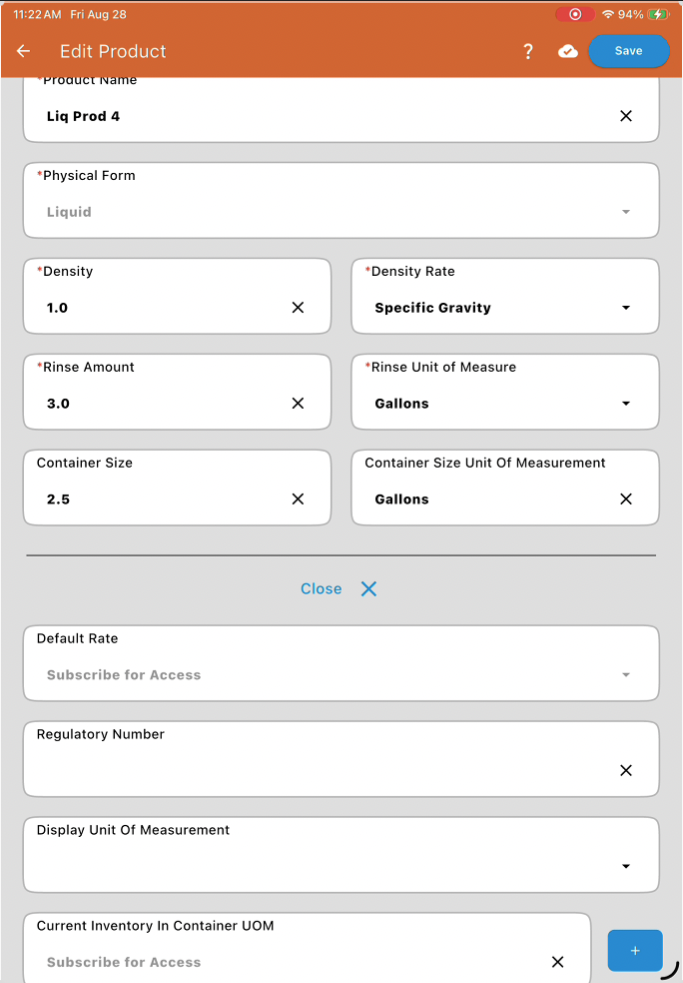
Tap Advanced Settings to reveal a few more fields. Note: Some of these show "Subscribe for Access" instead of an input if your plan doesn't include that feature.
Default Rate (included at Premium, tied to the Rates feature): The standard usage rate (e.g., Fluid Ounces/Acre). Setting this here saves time when adding the product to a new Work Order.
Regulatory Number: A field for tracking EPA numbers or other official identifiers.
Display Unit of Measurement: The units set here are what's used to display the target and actual values for this product during a mix.
Current Inventory In Container UOM (the Inventory add-on at Full, included automatically at Premium): Enter your total stock in container units (e.g., ten 2.5-gallon jugs is entered as "25" total gallons). Mixmate will subtract the amount used after each mix and update this value automatically. With Advanced Inventory (a Premium add-on), this field becomes a Current Inventory list with a separate inventory for each Mixmate.
Prefill (Dry products only): Defines the amount of water used to prefill the inductor before adding dry product.
Pro Tip for Dry Products: When using a Mixmate inductor, a prefill range of 1 to 5 gallons is recommended. A smaller number creates a more aggressive flow, which helps ingest difficult-to-dissolve dry products.
See Managing Current Inventory for how the countdown behaves during a mix and its limits in multi-tablet setups.
Tap Save when you are finished. Your product is now ready to be used in a Work Order.
2. Creating a Copy of an Existing Product
Section titled “2. Creating a Copy of an Existing Product”If you want to reuse a similar product instead of starting from scratch, tap the three dots on an existing Product and select Copy.
3. Archiving a Product
Section titled “3. Archiving a Product”Tap the three dots on a Product and select Archive. Archiving a Product hides it from every menu and view in the app. This works the same way for Products as it does for every other item on the Data tab except Mixmates, which cannot be archived.
Restoring: An archived Product can only be restored through the Web App, and only within 24 months of being archived. After 24 months with no restore, the Product is permanently deleted.
Referenced Products can't be archived: Unlike a Work Order, a Product can be referenced elsewhere in the system. If you try to archive a Product that's currently used in an active Work Order, the system will not allow it — remove it from that Work Order first.
Common Questions
Section titled “Common Questions”Do I need to be near the machine to create or edit a product?
No. You can create and manage products anywhere using the app or the website.