Customer List
The Customer List keeps the customers you mix for, so a Work Order and each mix can record who it's for. It's also where you give a customer access to a Kiosk.
Finding the Customer List
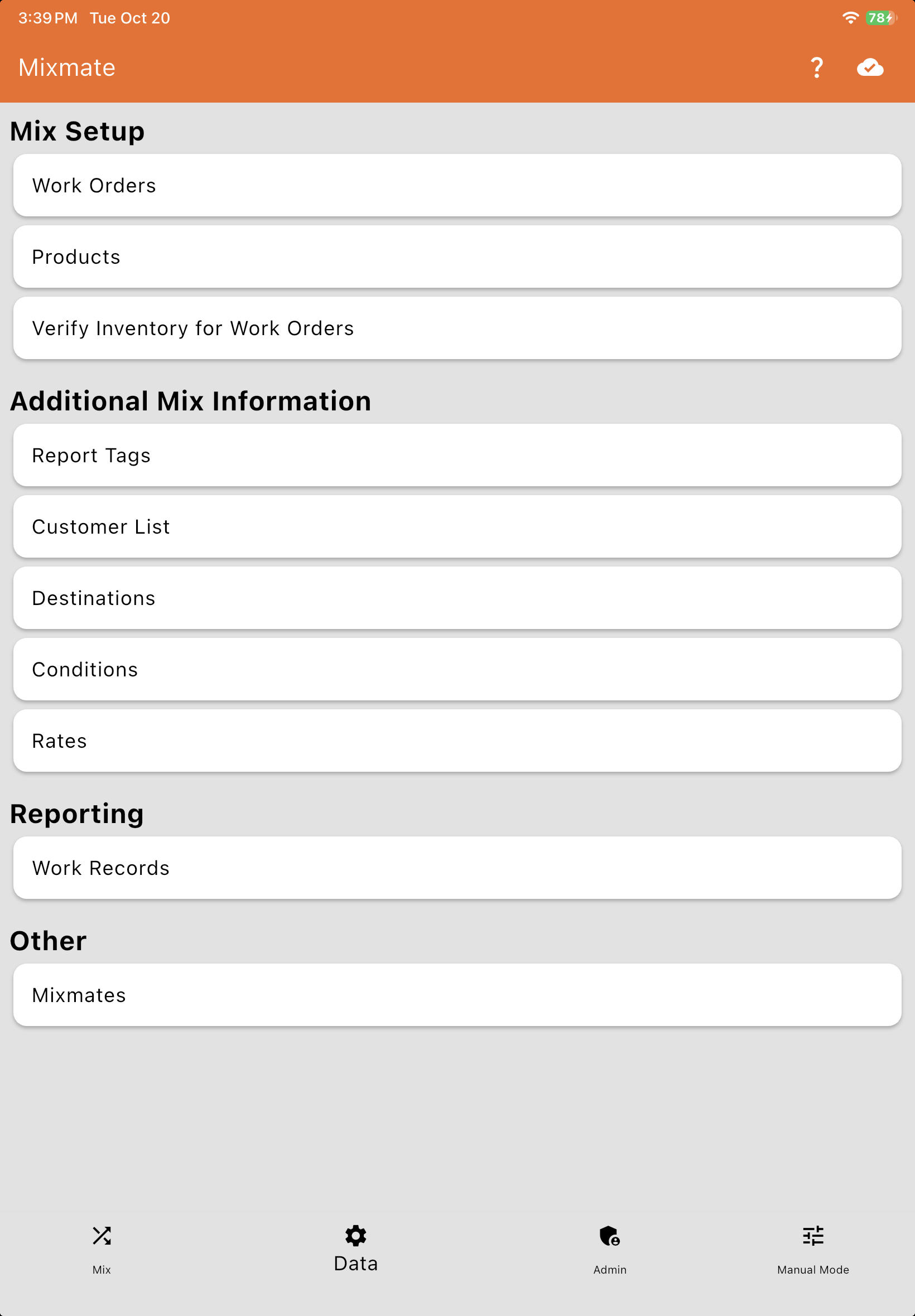
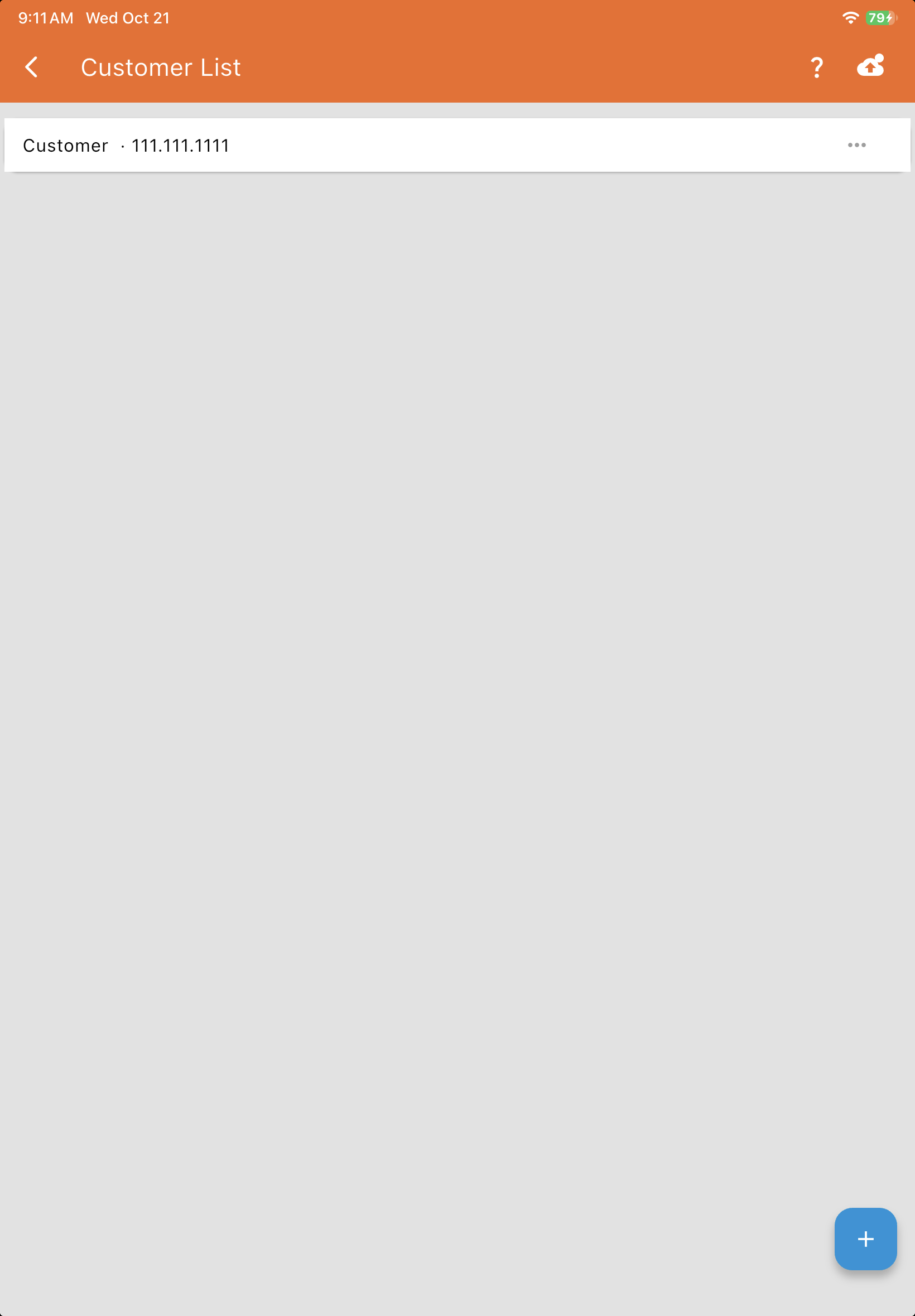
Section titled “Finding the Customer List”Open the Data tab and tap Customer List, under Additional Mix Information. It lists your customers by name: tap one to edit it, or tap + to add a customer.
Adding or Editing a Customer
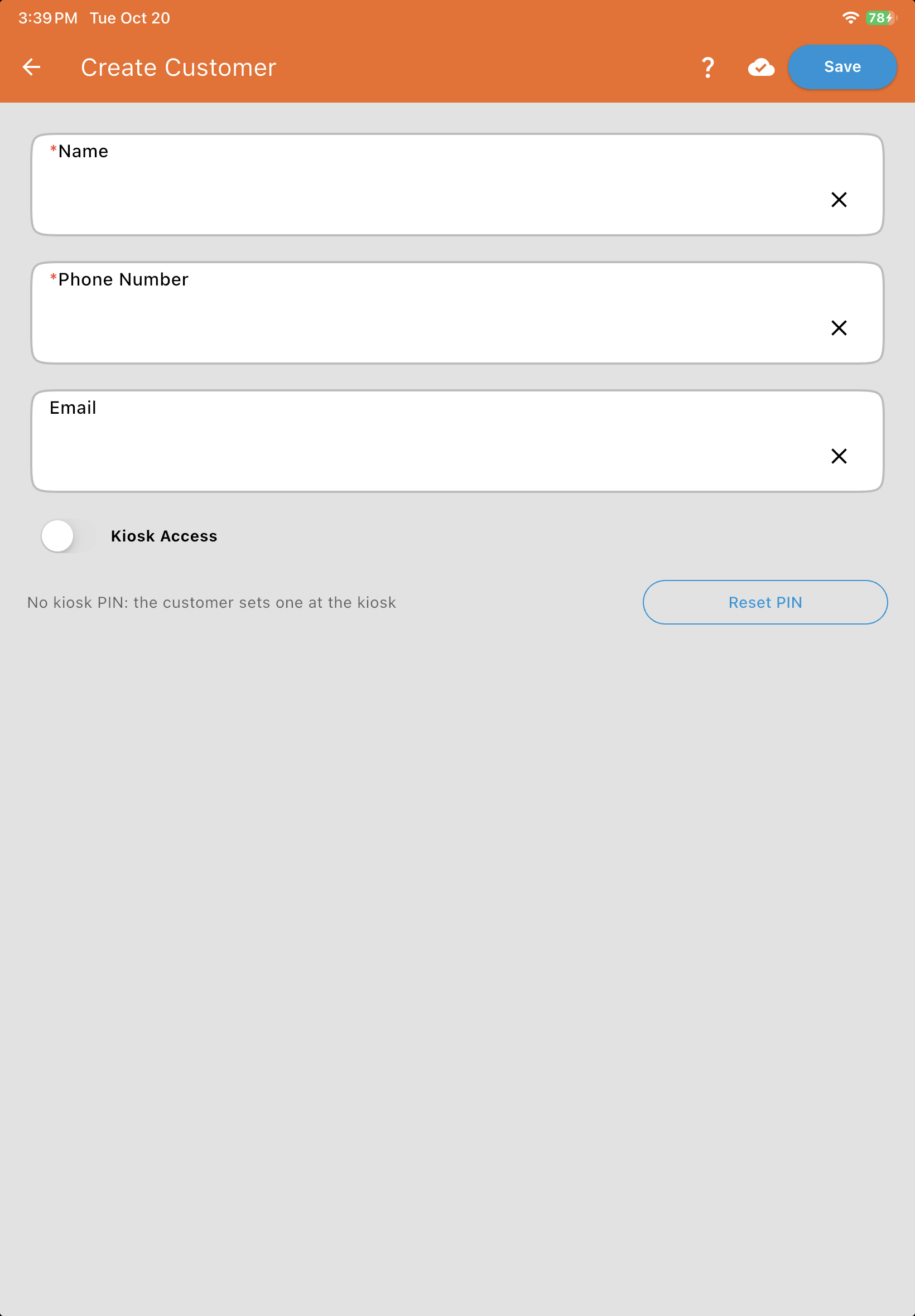
Section titled “Adding or Editing a Customer”Name*: The customer's name.
Phone Number*: At least 7 digits. Formatting doesn't matter (555-123-4567 and 5551234567 are the same number), and no two customers can have the same number: it's how the customer signs in at a kiosk.
Email: Optional.
Kiosk Access: Shown with Kiosk Mode. Turn it on to let this customer run their Work Orders at a kiosk.
Kiosk PIN: Shown with Kiosk Mode. The customer sets their own PIN the first time they use a kiosk; the PIN itself is never shown here, only whether it's set. If they forget it, tap Reset PIN: they'll set a new one at the kiosk next time.
A customer you no longer work with can be archived from the list, like other data.
Putting a Customer on a Work Order
Section titled “Putting a Customer on a Work Order”A Work Order has a Customer field (above the Report Tags) to choose who it's for. Every mix of that Work Order records the customer. For a kiosk, this is how a customer's Work Orders are found.

Recording the Customer on a Mix
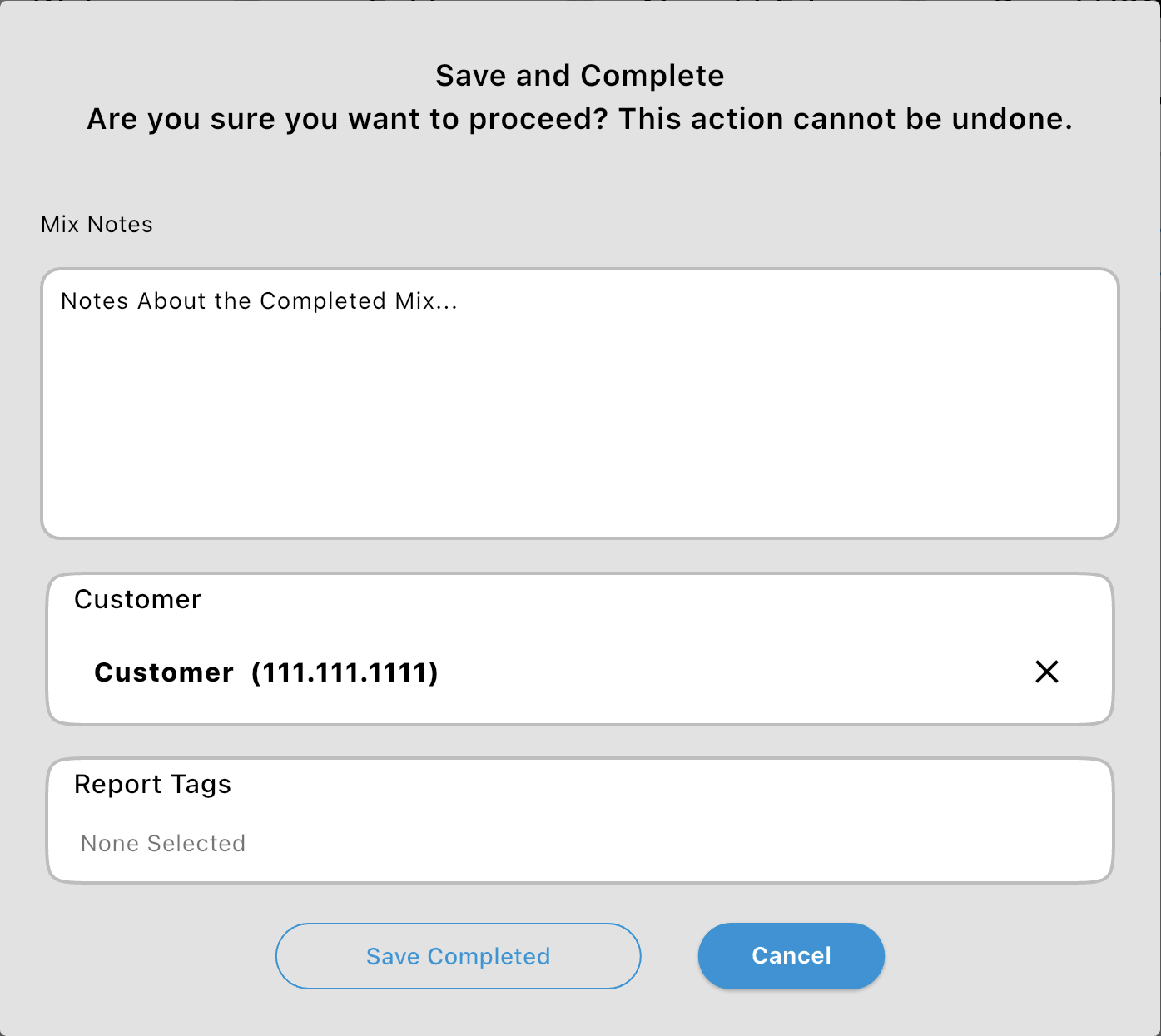
Section titled “Recording the Customer on a Mix”When you save and complete a mix, the dialog has a Customer field, filled in from the Work Order. Change it if this mix was for someone else. The customer is saved with the Work Record, and the CSV report has a Customer column (see Work Records).
Requiring a Customer for Every Mix
Section titled “Requiring a Customer for Every Mix”Turn on Require a Customer for Every Mix on the Group Settings page to make choosing a customer part of saving every mix: a mix can't be saved and completed until it has one.
Common Questions
Section titled “Common Questions”I don't see Customer List on the Data tab. The Customer List comes with Kiosk Mode or as its own add-on, and only appears once one is part of your subscription. To add it, sign in to Intersect and update your subscription, then sync the Mixmate app.
It says another customer already has this phone number. Phone numbers must be unique, since a customer signs in to a kiosk with theirs. Check the list for a duplicate of this customer.
A customer forgot their kiosk PIN. Open the customer and tap Reset PIN, then sync. They'll set a new PIN the next time they use the kiosk.