Destinations
A Destination represents the container where the mix is sent. Beyond simply recording where the product went, a Destination can define the size of a mix and trigger automated Mix Actions if your equipment is configured for them.
Creating a New Destination
Section titled “Creating a New Destination”To add a new destination to your list, navigate to the Destinations overview page and press the blue "+" button in the lower right corner.
Destination Entries
Section titled “Destination Entries”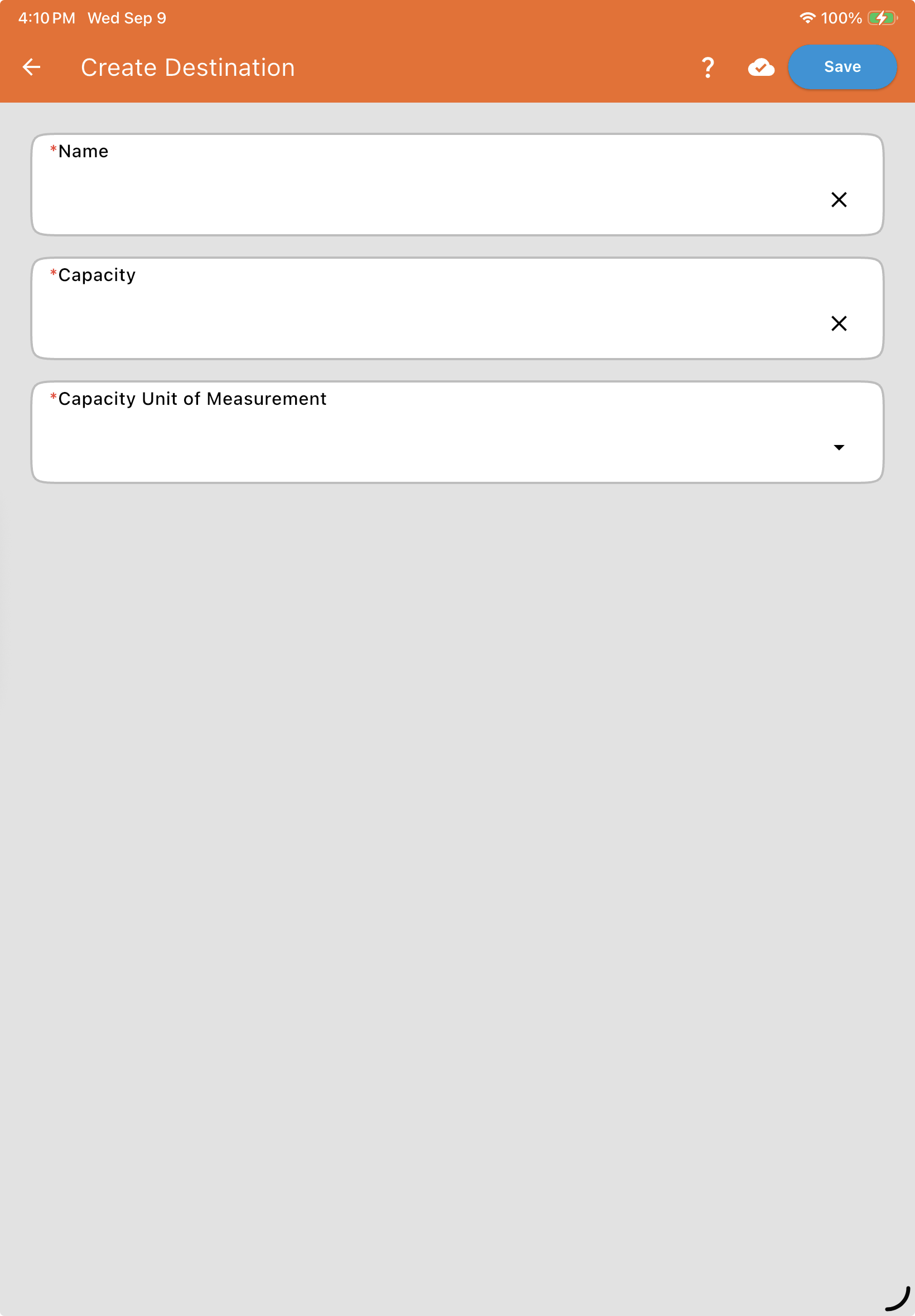
| Field | Description |
| Destination Name* | The name that appears in dropdown menus during mix setup (e.g., "Sprayer 1" or "Truck 402"). |
| Capacity* | The numerical value representing the maximum volume the destination can hold. |
| Capacity Unit of Measure* | The units describing the capacity (e.g., Gallons). |
Common Use Case: If you are filling a 1200-gallon sprayer, you would enter 1200 as the Capacity and Gallons as the Unit of Measure.
Why Destinations Matter
Section titled “Why Destinations Matter”A Destination isn't just a label — it can be referenced by both Work Orders and Mixmates:
Mix Size Limits (Work Order): Depending on your Work Order settings, selecting a destination can automatically set the target mix size to match the destination's capacity.
Accurate Reporting (Work Order): By selecting a destination for every single mix performed, you maintain a clear record of exactly which piece of equipment received which product.
For Destination Mix Actions (Mixmate): On the Mixmate itself, a Mix Action can be configured with the For Destination type, linking a specific valve or pump to a specific Destination — e.g., selecting "Batch Tank 1" as the mix's destination automatically opens the valves wired to that tank. Note: This creates a direct link between the Mix Action and the Destination.
Creating a Copy of an Existing Destination
Section titled “Creating a Copy of an Existing Destination”If you want to reuse a similar destination instead of starting from scratch, tap the three dots on an existing Destination and select Copy.
Archiving a Destination
Section titled “Archiving a Destination”Tap the three dots on a Destination and select Archive. Archiving a Destination hides it from every menu and view in the app. This works the same way for Destinations as it does for every other item on the Data tab except Mixmates, which cannot be archived.
Restoring: An archived Destination can only be restored through the Web App, and only within 24 months of being archived. After 24 months with no restore, the Destination is permanently deleted.
Referenced Destinations can't be archived: Like a Product or Report Tag, a Destination can be referenced elsewhere in the system. If you try to archive a Destination that's currently used in an active Work Order or linked to a For Destination Mix Action, the system will not allow it — remove that reference first.