Report Tags
A Report Tag is a piece of identifying information attached to a mix. These tags make your records easily searchable and sortable when exporting data from Mixmate. By using "Sub Tags," you can create nested hierarchies, such as the Grower > Farm > Field structure used in many other platforms.
Common Usage Examples
Section titled “Common Usage Examples”Crop Year: 2024, 2025, 2026.
Crop Type: Corn, Soybeans, Wheat.
Application/Pass Type: Pre-Emerge, Post-Emerge, Foliar, Fungicide.
Customer/Grower Information: Customer Name, or a Grower > Farm > Field hierarchy using Sub Tags (place Farm above Field if desired — there are 3 levels of nesting total).
Logistics: Truck Number or Machine ID.
Anything else you want to be able to filter records by later.
Creating a New Report Tag
Section titled “Creating a New Report Tag”To add a new tag, navigate to the Report Tags overview page and press the blue "+" button in the lower right corner.
Report Tag Settings
Section titled “Report Tag Settings”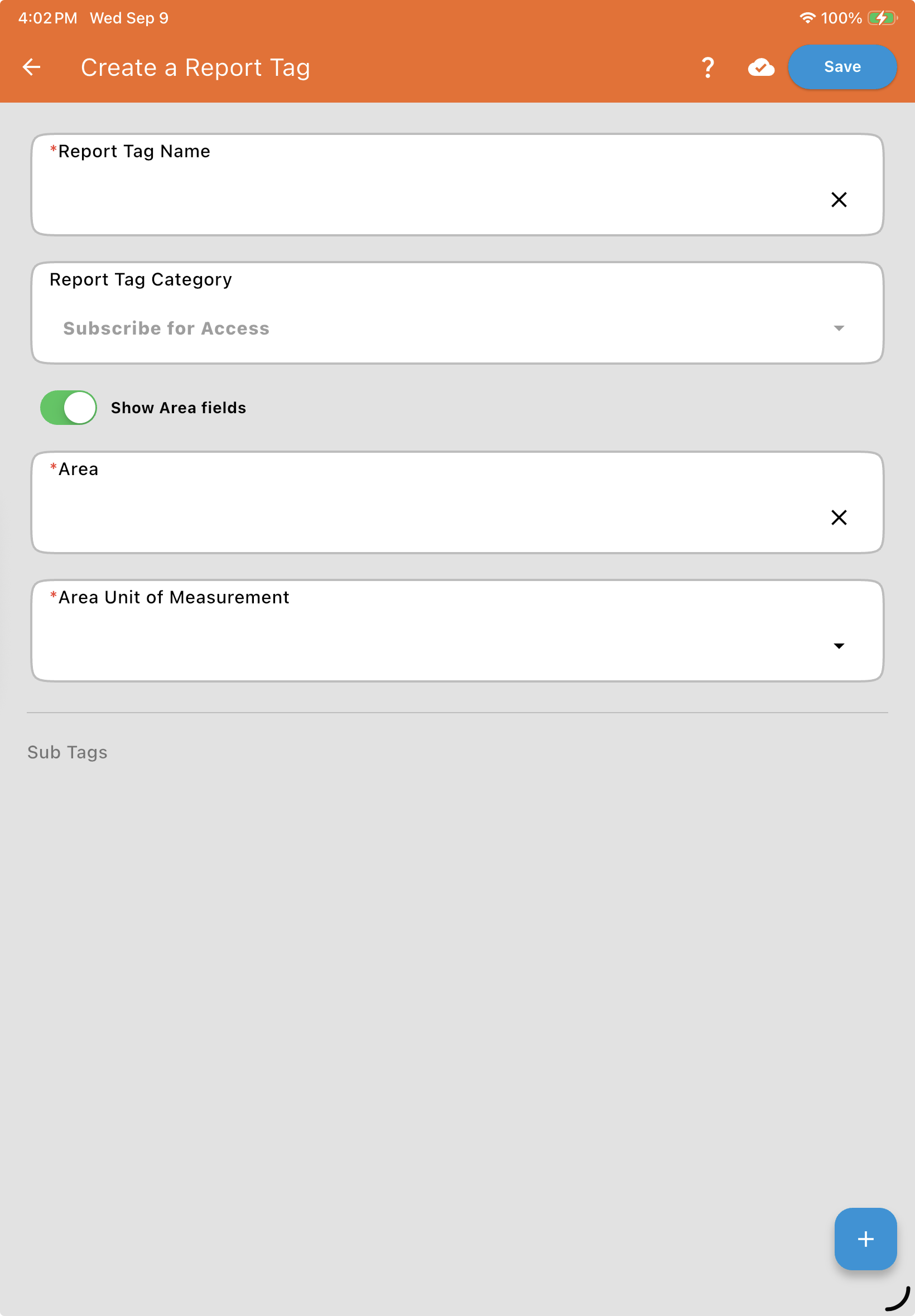
| Field | Description |
| Report Tag Name* | The title that appears in selection menus (e.g., "North 40"). |
| Report Tag Category | (Optional) Associates the tag with a specific Report Tag Category, if your organization has them configured — requires the Report Tag Categories add-on. See below. |
| Show Area Fields | Defaults to OFF. Toggle this ON if the tag represents a specific area, like a field. |
| Area* | The numerical size of the area (e.g., 120). Only visible — and required — if "Show Area Fields" is on. When a Report Tag with an Area is selected while creating a Work Order, the app asks whether you want to set the Work Order Size to the total area of all selected Report Tags — a quick way to size a Work Order without entering the acreage by hand. |
| Area Unit of Measure* | The units for the area (e.g., Acres). Only visible — and required — if "Show Area Fields" is on. |
Working with Sub Tags
Section titled “Working with Sub Tags”Sub Tags allow you to nest information for better organization. For example, under a "Grower" tag, you can add "Farm" tags, and under those, "Field" tags.
Note: Mixmate supports a maximum of 3 levels of tags total.
How to add Sub Tags:
Section titled “How to add Sub Tags:”Open or create a parent tag (e.g., a Grower).
In the Sub Tags section, press the blue "+" button.
Enter the details for the nested tag (e.g., a Farm).
This structure ensures that for every single mix performed, the operator can quickly drill down through the hierarchy to select the exact location of the application.
Creating a Copy of an Existing Report Tag
Section titled “Creating a Copy of an Existing Report Tag”If you want to reuse a similar tag instead of starting from scratch, tap the three dots on an existing Report Tag and select Copy.
Archiving a Report Tag
Section titled “Archiving a Report Tag”Tap the three dots on a Report Tag and select Archive. Archiving a Report Tag hides it from every menu and view in the app. This works the same way for Report Tags as it does for every other item on the Data tab except Mixmates, which cannot be archived.
Restoring: An archived Report Tag can only be restored through the Web App, and only within 24 months of being archived. After 24 months with no restore, the Report Tag is permanently deleted.
Referenced Report Tags can't be archived: Like a Product, a Report Tag can be referenced elsewhere in the system. If you try to archive a Report Tag that's currently used in an active Work Order, the system will not allow it — remove it from that Work Order first.
Report Tag Categories
Section titled “Report Tag Categories”Report Tag Categories are a Premium add-on that let you set up a type for your Report Tags (e.g., "Customer," "Grower," "Crop Year"), then optionally force every mix to include a tag from that category before it can be finalized. This is especially useful for custom applicators who want to guarantee every mix has a Customer tag selected, so they can reliably filter and total up all mixes done for a given customer each year.
See Report Tag Categories for how to set one up.