Mixmates
The Mixmates card (found under the Data tab) is the control center for your machine’s hardware logic, firmware, and plumbing definitions.
Machine Settings
Tap the center of a Mixmate’s card to open the Mixmate Settings modal — this is the first level of settings, including Minimum Holdback Size, Unit of Measurement, and Starting Carrier Valve Position (with an Auto toggle between Min Valve Opening and Max Pump Capability). Note: You must press SAVE for changes to apply.
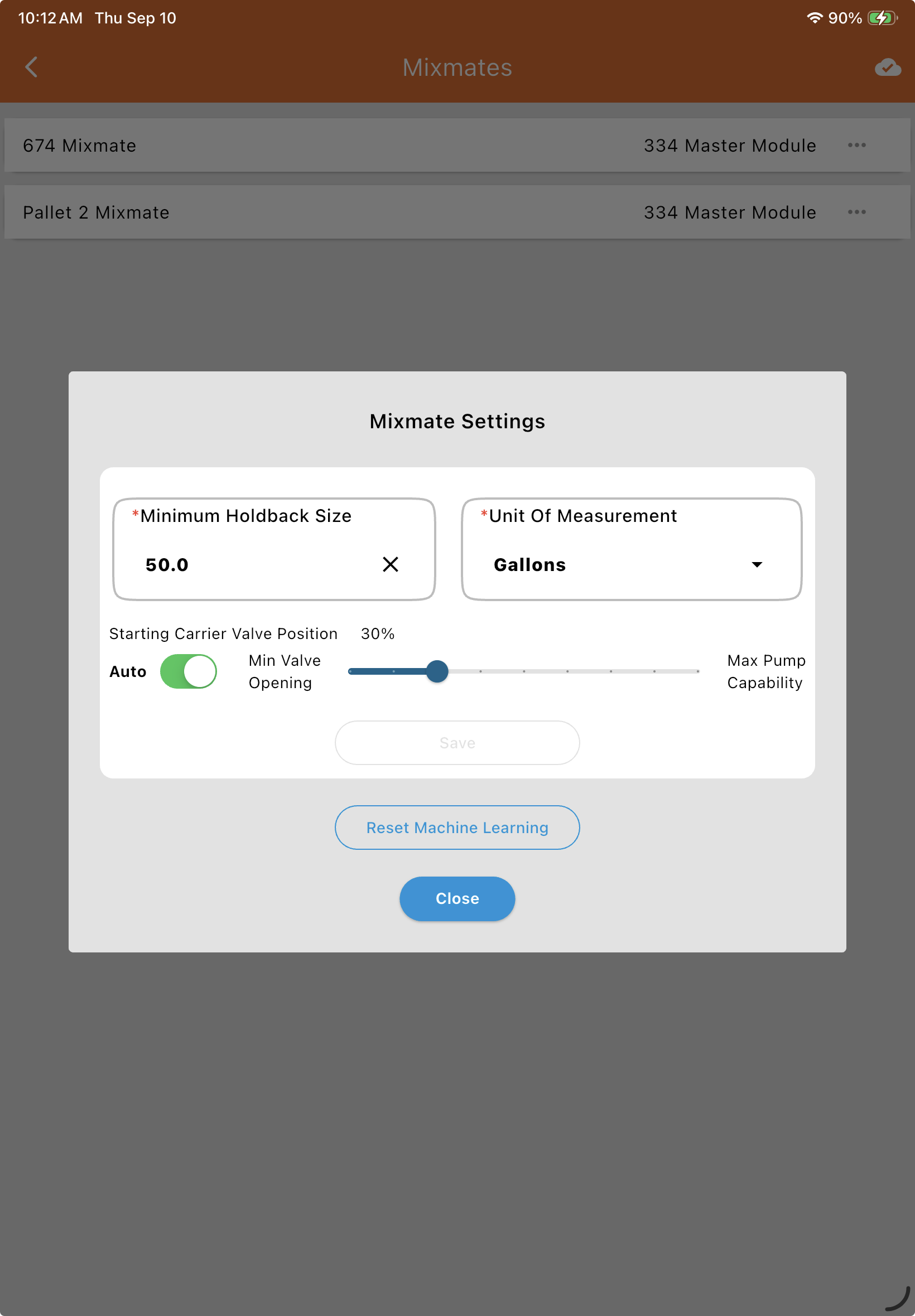
Reset Machine Learning
The machine is constantly analyzing how well it hits each product’s target and adjusting itself to do better over time — this happens automatically, whether or not you ever reset anything. Reset Machine Learning clears out what the machine has "learned" so far and starts that adjustment process over.
Why targets get missed: This learning is based on consistent conditions, so the most common reason for overshooting or undershooting a target is a change in pump speed or RPM. If you typically run your pump at an idle while mixing and the system "learns" that timing, but then you perform a mix at full throttle, the product will likely overshoot — the chemical is moving much faster than the system expects, and the valve cannot close quickly enough to compensate. Mixmate will always attempt to hit the target as closely as possible, but it relies on the operator to maintain a steady environment; if your pump speed varies wildly from load to load, the "learning" becomes less accurate.
Other variables that affect accuracy: switching suction points (pulling from a distant tote versus a nearby tank changes the friction and flow rate) and fluid temperature (very cold chemicals flow slower than warm ones — a significant temperature swing throughout the day can temporarily affect timing until the system "re-learns" the new flow rate).
For best accuracy: pick a standard operating RPM for your pump and stick to it for every load. If you do change your setup (e.g., a new pump or different plumbing), it may take 2–3 cycles for the Machine Learning to fully calibrate to the new flow characteristics.
Reset Machine Learning is useful when:
A valve or pump has been replaced in a way that significantly changes the flow characteristics of the system, making the old learned behavior inaccurate.
The operator isn’t happy with how the machine is currently hitting product targets and wants to reset the learning procedure and let it re-adjust from scratch.
Machine Actions
Tap the three dots on the right side of a Mixmate’s card to open the Actions menu:
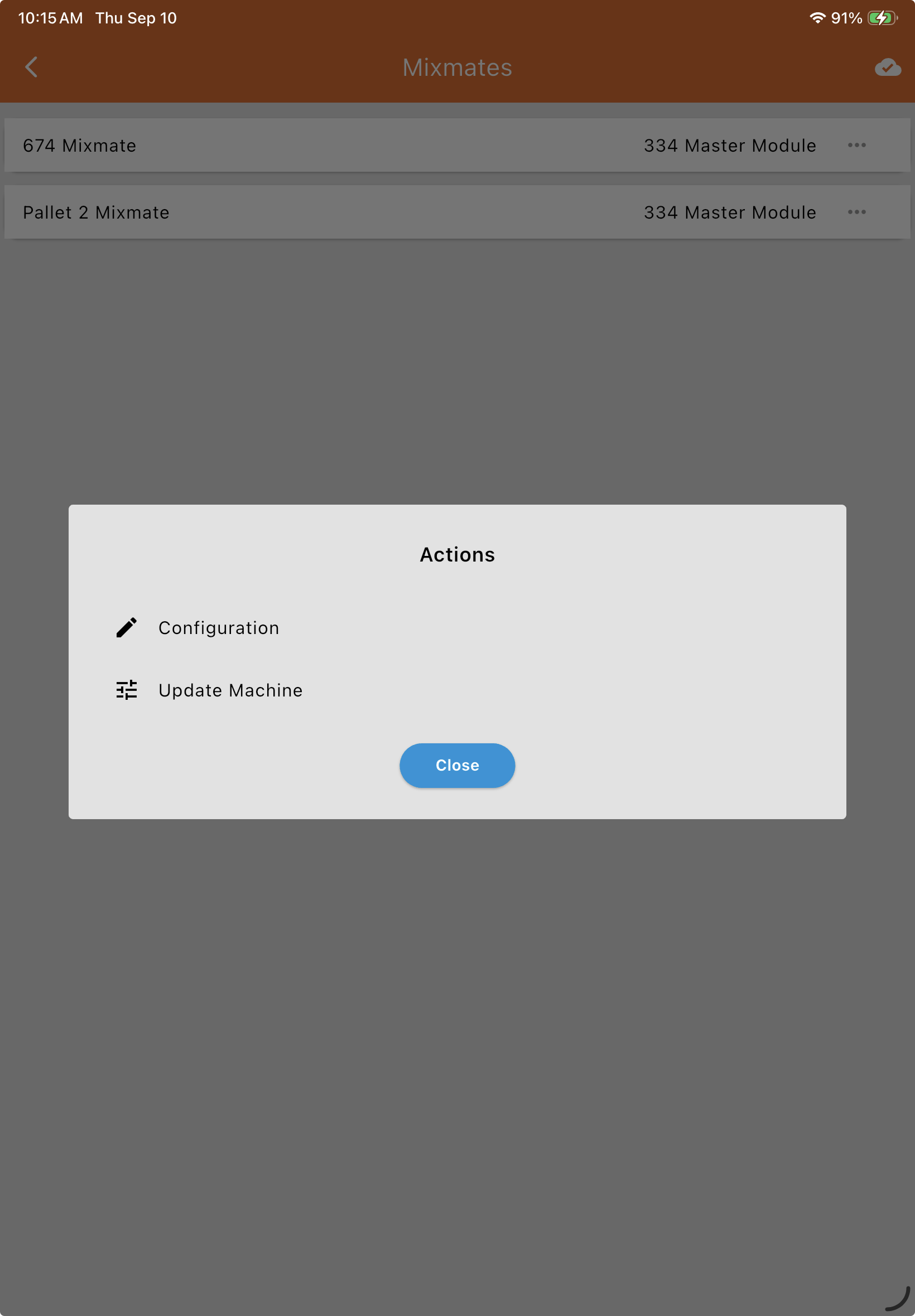
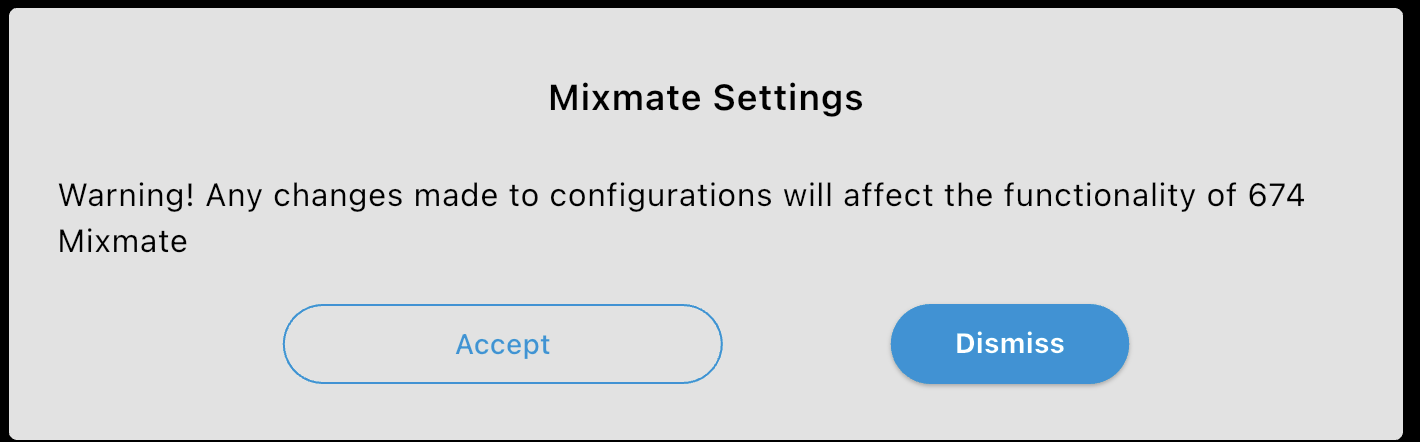
Configuration: Opens a warning screen first — accepting it takes you into the Configuration tabs covered below.
Selecting Configuration shows a warning before letting you in, since changes here affect the machine’s functionality. Tap Accept to continue, or Dismiss to back out. We highly recommend being on the phone with a Mixmate Technician or Dealer who understands what they’re changing before you accept and start making changes — it’s easy to misconfigure hardware in a way that stops the machine from mixing correctly.
Update Machine: Runs a firmware update, pushing the latest software to the machine’s individual electronic modules — scales and inductor measurement, valves and pumps, flowmeters, and other system components — to keep them stable and current with the newest Mixmate features.
Before you begin: make sure the Mixmate is powered on, stay near the machine during the update for a stable connection, and confirm your tablet is connected to the Mixmate Wi-Fi network and logged into the app.
Important: Follow all on-screen instructions exactly. Do not turn off the machine or exit the app until the update is 100% complete — interrupting the process may require you to restart the update from the beginning.
Changelog (Paid Unlock): This shows the history of changes made to this machine.
For manual hardware testing instead of configuration, see Diagnostics Mode (Manual Mode tab > select your machine > Diagnostics Mode tab).
Configuration Tabs
Once inside Configuration, you’ll find the tabs used to set up your machine’s hardware, firmware logic, and plumbing definitions — see Configuration for the full list and the same recommendation about looping in a Technician or Dealer.