How API Work Orders Work
If your organization plans jobs in other software (for example Agvance), an API connection sends those Work Orders to Mixmate, so nobody has to type them in again. This article walks through the whole process, from the order leaving your software to the operator mixing it on the tablet.
Before you start:
The connection is set up in Intersect by an administrator, and needs the Premium tier.
Importing is done in the Web App (app.mixmate.com). The tablet app doesn't import API Work Orders; it receives them once they're imported.
The Process at a Glance
Section titled “The Process at a Glance”Your software sends the order. It waits on the connection until someone imports it.
You sync the API in the Web App. Mixmate collects the waiting orders and tries to import each one.
Complete orders import by themselves. Their products are matched to the ones you already have, and new ones are created.
Incomplete orders are held in the API Inbox until someone fills in what's missing.
The tablet gets the imported orders the next time it syncs to the cloud.
1. Syncing the API
Section titled “1. Syncing the API”New orders don't import on their own: someone has to sync the API. Do this whenever new orders have been sent, for example at the start of the day.
In the Web App, open the Admin tab.
Find the Unimported Work Orders card. It shows two counts:
The first number: orders held for review in this session (see step 3).
Available to Import: orders waiting on your connections, including held orders that haven't been resolved yet.
On a narrow browser window the counts are hidden; widen the window to see them.
Click Sync API on the card. The API Syncing window opens and shows its progress:
Fetching API Work Orders to Import: Mixmate is collecting the waiting orders. The number counts up as they arrive.
Importing API Work Orders: each order is checked and imported, with a progress bar.
Completed: everything has been processed. Close becomes available.
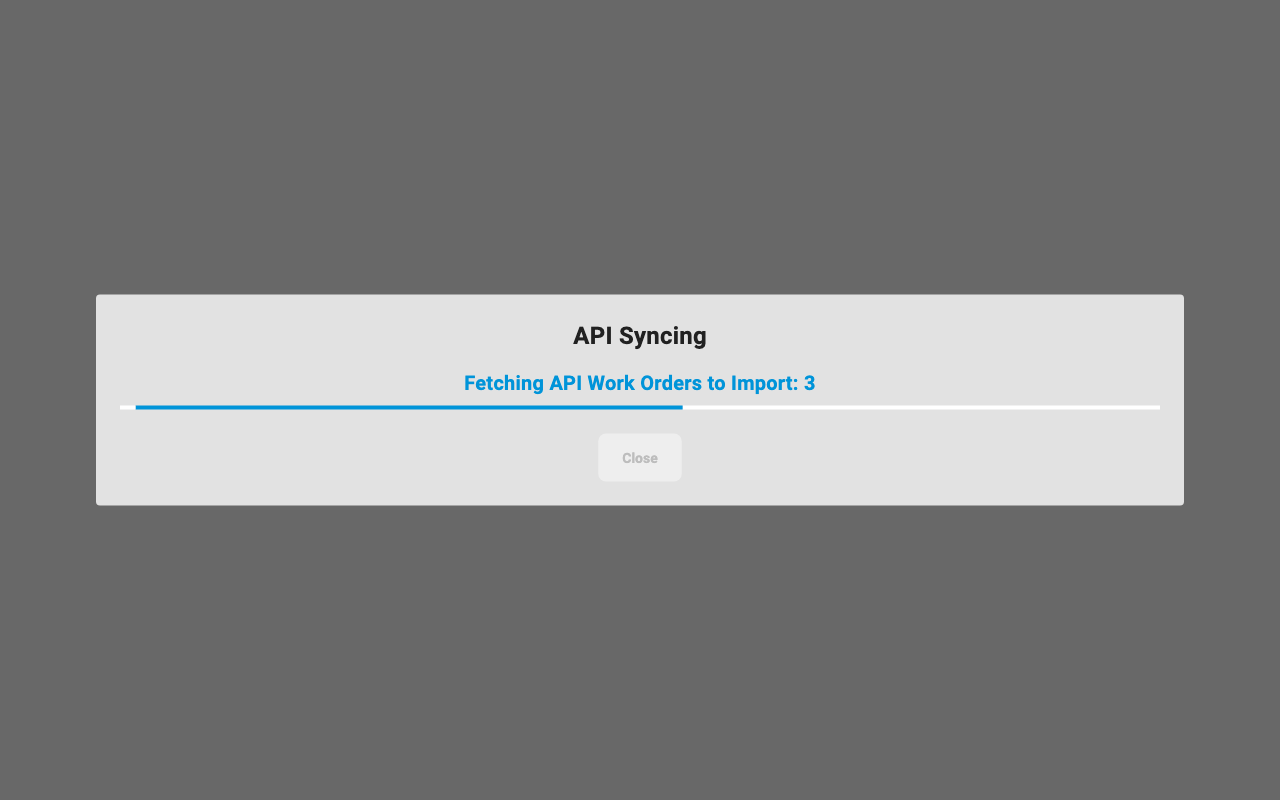
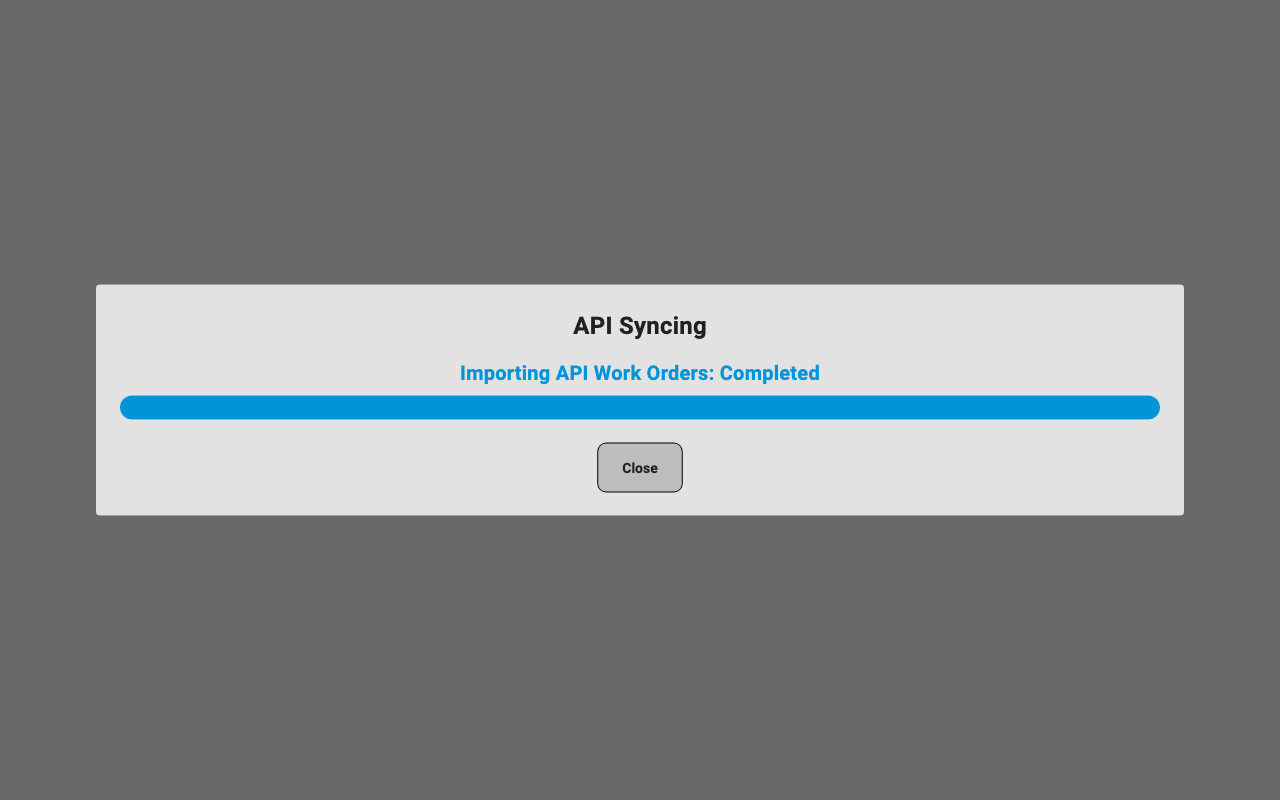
Tip: Keep the tab open until the window says Completed. Closing the browser part-way leaves the remaining orders waiting; just sync again.
2. What Imports by Itself
Section titled “2. What Imports by Itself”For each order, Mixmate looks at its products first, then at the Work Order.
Products
Products you already have are used. A product matches if it's the same product the API sent before, has the same external identifiers, or has the same name. If the match is archived, it's restored.
New products are created, as long as the API sent everything Mixmate needs for them (for example the density of a dry product).
Existing products keep your details unless Update API Products on Import is turned on in Group Settings. Turn it on if your other software is where you keep your product list.
The Work Order
A complete order imports straight away, with no review.
An order whose Work Order Number you already have is skipped. It isn't imported again, and changes to it aren't applied. To change an order that's already imported, edit it in Mixmate.
Anything that can't import because information is missing is held for review.
3. Orders Held for Review
Section titled “3. Orders Held for Review”An order is held when Mixmate needs something the API didn't send. Common reasons:
A new product is missing details, such as its density, density rate, or container size.
The Work Order is missing its size, such as the acres to cover on a rate-based order, or its application rates.
Click the Unimported Work Orders card to open the API Inbox. It lists each held order with the connection it came from.
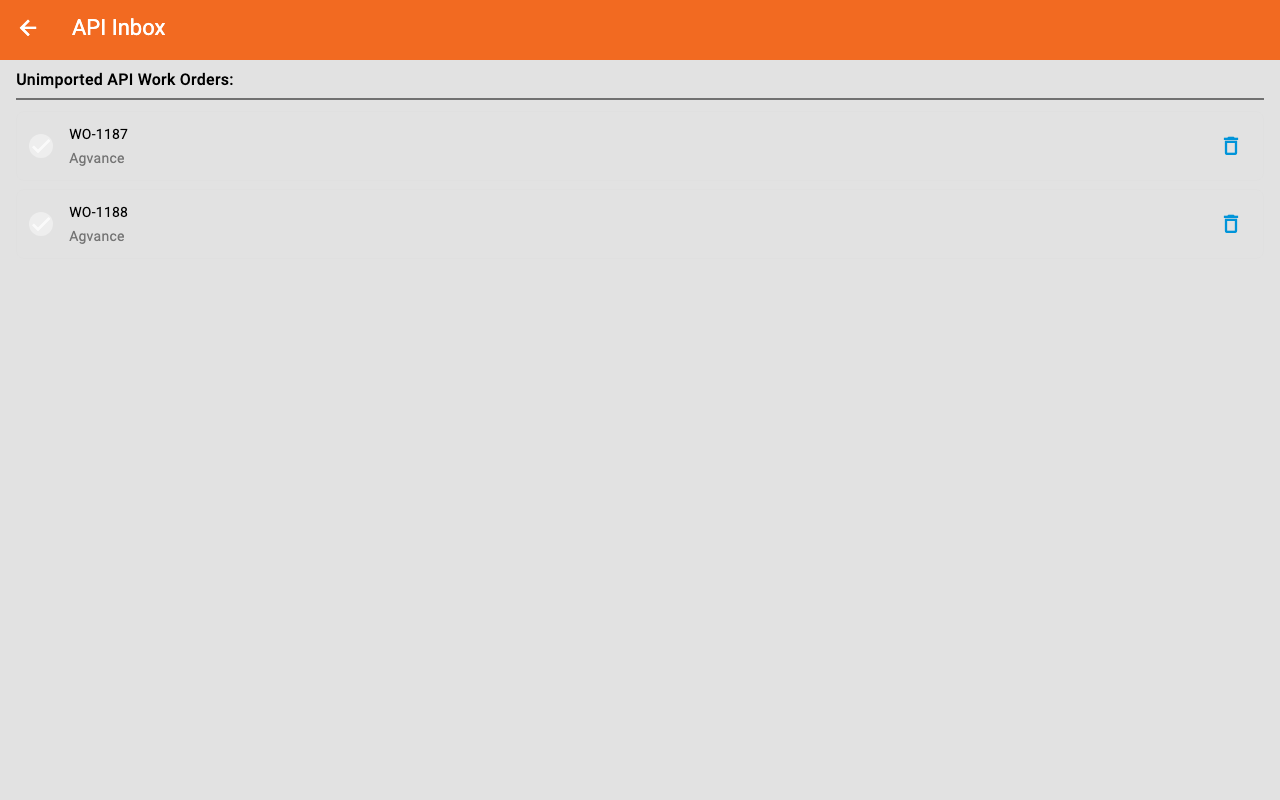
Click an order to fix and approve it. Manually Importing API Work Orders walks through it step by step.
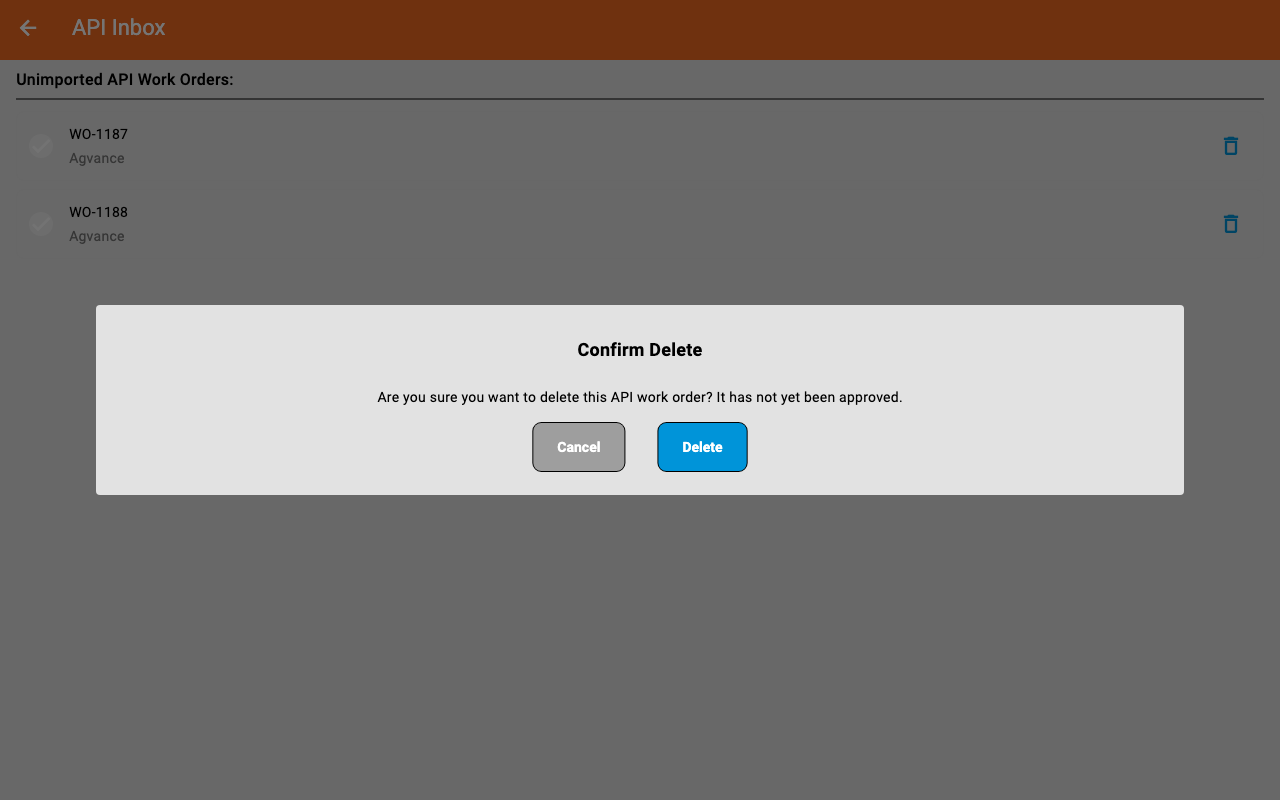
Don't need an order? Click the trash can next to it, then Delete. It's removed from the inbox and from the connection, and isn't imported.
Held orders and reloading the page: The API Inbox is filled by Sync API. If you reload the Web App or sign in again, the inbox starts empty, but the held orders are still counted under Available to Import. Click Sync API again and they come back to the inbox.
4. On the Tablet
Section titled “4. On the Tablet”Imported orders are saved to your cloud account straight away. Each tablet gets them the next time it syncs to the cloud. From there they're ordinary Work Orders: pick one in Mix Setup and mix it as usual.
Troubleshooting
Section titled “Troubleshooting”I don't see the Unimported Work Orders card. It's only in the Web App, not on the tablet. If you're in the Web App, your organization needs Premium and an API connection set up in Intersect.
Available to Import shows orders, but the inbox is empty. Click Sync API. Orders that import go straight to your Work Orders; the rest appear in the inbox.
An order I sent isn't in Mixmate. Sync the API. If it still isn't there, check whether a Work Order with the same number already exists: if so, the new one was skipped.
The tablet doesn't have the order. Make sure it's imported (it's in the Web App's Work Orders, and not in the API Inbox). Then sync the tablet to the cloud.
A product's details keep changing back. Update API Products on Import is on, so each import updates the product from your other software. Change the product there, or turn the setting off.