Account Introduction
Before you can begin using the Mixmate App or Web App, your account must be initialized through the Intersect portal.
1. Getting Your Account
Section titled “1. Getting Your Account”There are two ways a new customer gets set up:
- Your dealer registers you. Your dealer creates your account in the system on your behalf, and you'll receive a Welcome to Mixmate email to activate it.
- The Link: This email contains a unique link to set up your account and password.
- Verification: If you have not received this email, please check your spam folder or contact your dealer or admin to ensure it was sent to the correct address.
- See Managing Users in Intersect for an example of what this email looks like.
- You register yourself. When you receive your machine, open the Mixmate App and scan the QR code on the machine to create your account directly.
- See Installing the Mixmate App for the self registration instructions.
If your dealer registered you (or an admin later adds you to an existing company account), you'll receive a Welcome to Mixmate email:
2. How to Login
Section titled “2. How to Login”Access to the administrative side of Mixmate is handled through a web browser.
- URL: Go to intersect.mixmate.com
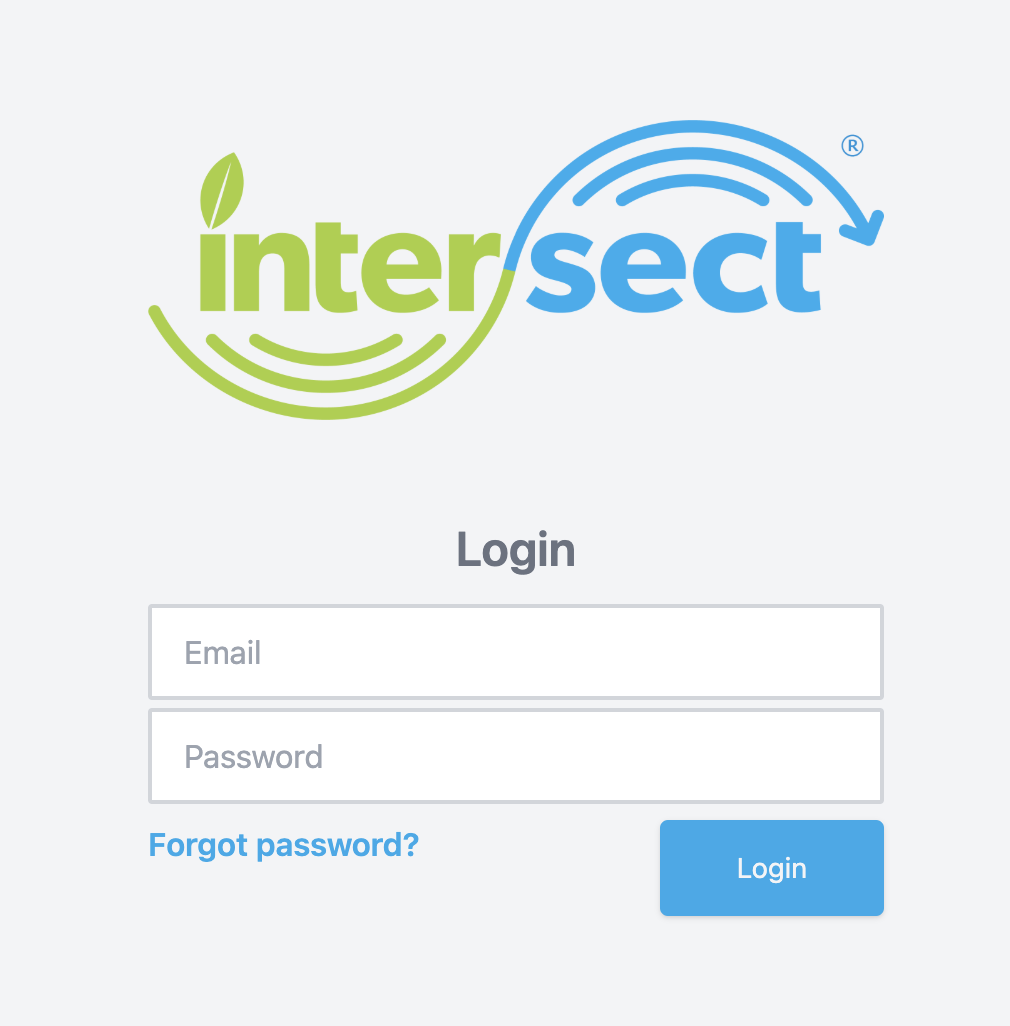
- Credentials: Enter the email and password you created via the welcome link.
- Forgot Password: If you cannot remember your credentials, click "Forgot Password?" or go directly to intersect.mixmate.com/forgot-password
3. Managing Your Account
Section titled “3. Managing Your Account”Once logged in, you can manage your organizational structure. See Managing Users in Intersect.
4. Verifying Your Company Information
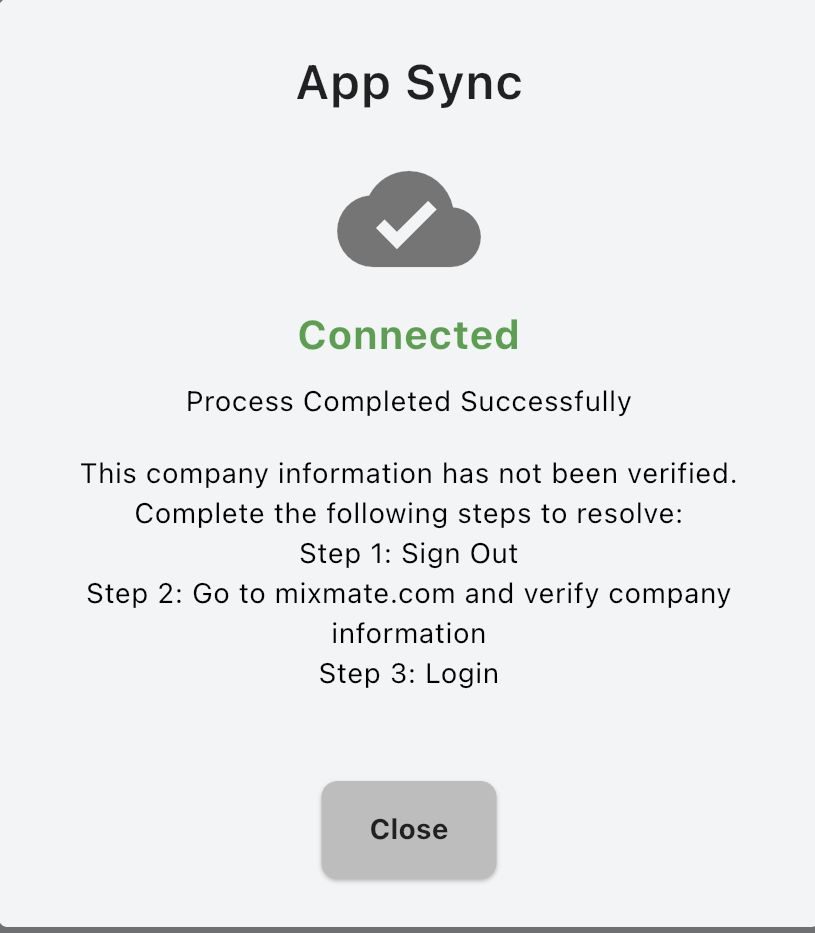
Section titled “4. Verifying Your Company Information”If you get a modal in the app with the following text, complete the steps below to resolve it:
This company information has not been verified. Step 1: Sign Out. Step 2: Go to mixmate.com and verify company information. Step 3: Login.
- Go to mixmate.com or intersect.mixmate.com (these both go to the same location).
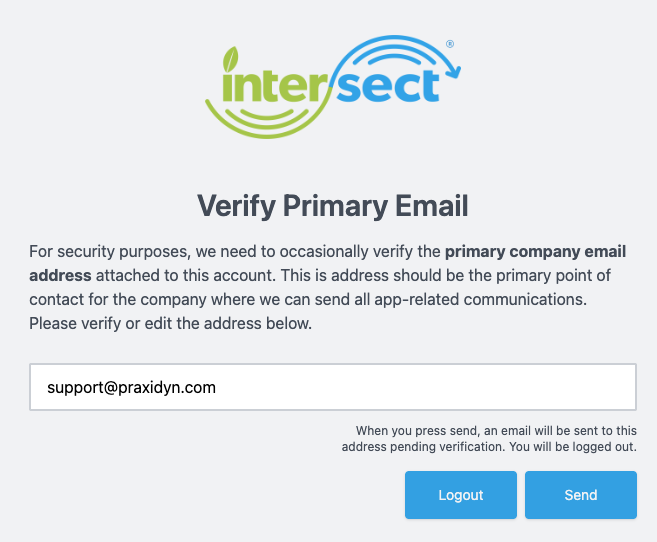
- Log in and you will see a screen to verify the primary email. This should be the owner's email — the primary point of contact for the company where we can send all app-related communications.
- Look for the verification email sent from info@mixmate.com. This is a non-response address; questions go to support@praxidyn.com instead.
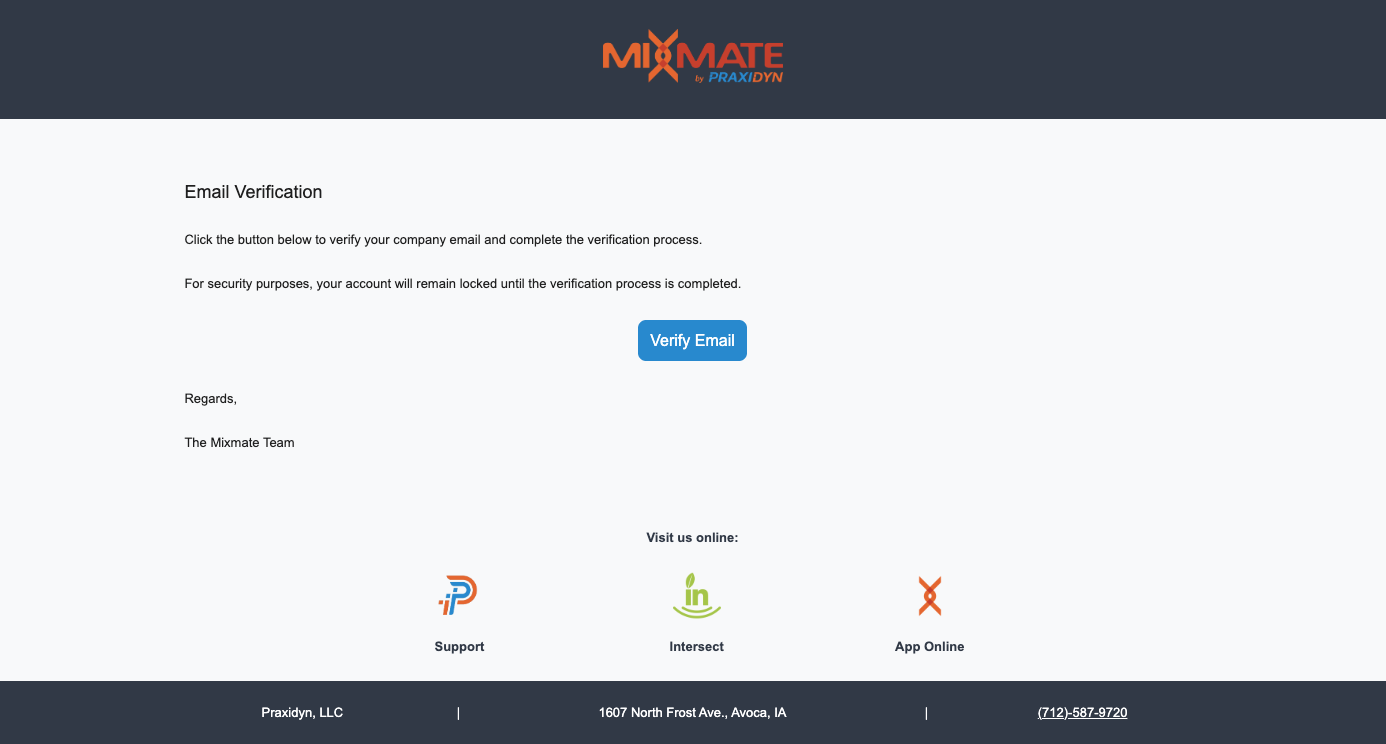
- Clicking the Verify Email button in that email takes you to a verification page.
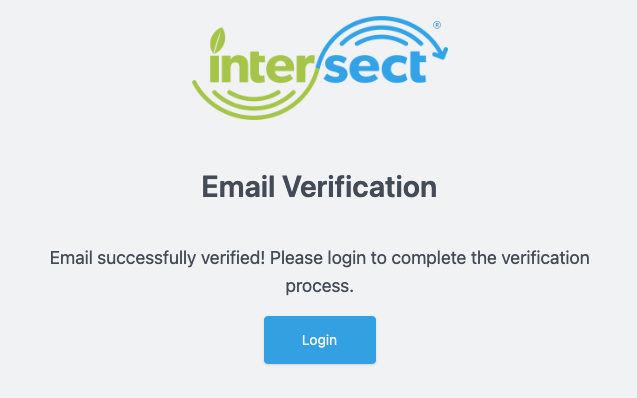
- Click Login and proceed. The next step is to verify your company information — make sure to enter a correct phone number and Billing/Shipping Addresses.
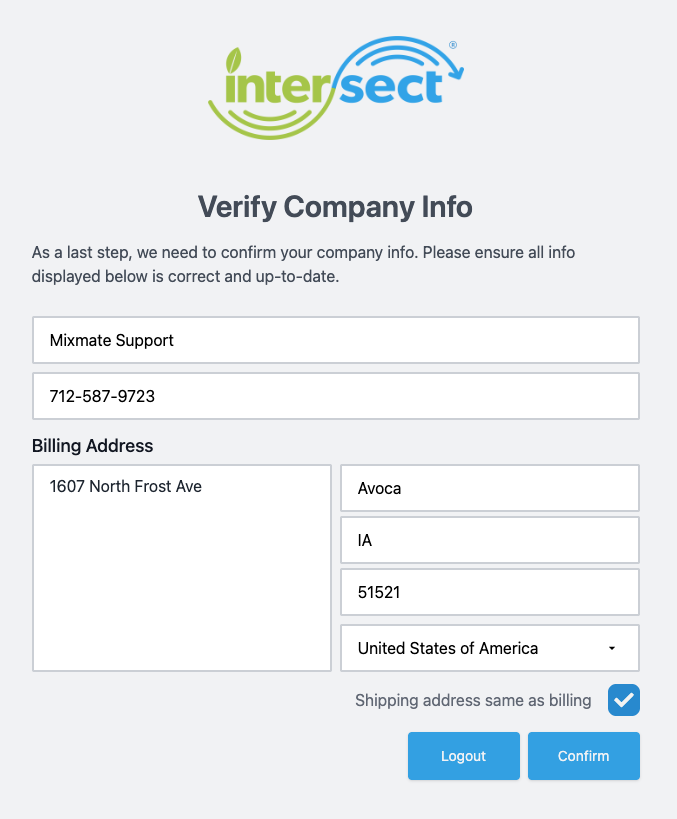
- Once confirmed, you should land on the Intersect dashboard. You can now reinstall the Mixmate app, or log into it again.
5. Resetting Your Password
Section titled “5. Resetting Your Password”If you are unable to log in, or if the invitation link in your "Welcome to Mixmate" email has expired:
- Go to the Intersect login portal at intersect.mixmate.com/forgot-password.
- Enter the email address associated with your Mixmate account.
- Check your inbox for an email with a fresh link to set or reset your password. If you don't see it within a few minutes, check your Junk or Spam folder.
Security Tip: These links are time-sensitive. If a link expires again, simply repeat the process to generate a new one.
6. Troubleshooting: Why Can't I Log In?
Section titled “6. Troubleshooting: Why Can't I Log In?”Login issues on the web (Intersect) are usually one of these:
- Expired Link: Welcome links are time-sensitive. Use "Forgot Password" above to generate a new one.
- Permissions: Ensure your browser is not blocking cookies or essential scripts from mixmate.com.
- Account Status: Verify with your Admin that your User Profile is active and that your email address is spelled correctly in the Admin Users section.
Login issues in the Mixmate App (on a tablet or phone) are usually one of these instead:
- No Internet Connection: The app requires an active internet connection to verify your credentials against the cloud database. Ensure your tablet is connected to a Wi-Fi hotspot or has a strong cellular signal. You only need internet for the initial login and for syncing data — once logged in, you don't need it to run the hardware or complete mixes.
- "Mixmate Wi-Fi" vs. Internet: A common mistake is staying connected to the Mixmate Hardware Wi-Fi while trying to log in — that network lets the tablet talk to the pumps and valves, but it does not provide internet access. Temporarily switch to a standard hotspot or home network to log in, then switch back to the Mixmate network to run your system.
- Incorrect Password: If you're definitely connected to the internet but still rejected, reset your password (see above), then use the new credentials to log into the app.
Summary Checklist: Disconnect from Mixmate Wi-Fi → Connect to an internet source (Hotspot/Home Wi-Fi) → Log in to the Mixmate App → Reconnect to the Mixmate Wi-Fi to start mixing.
7. My Subscription Has Expired
Section titled “7. My Subscription Has Expired”If your device says your subscription has expired, sync it with the cloud first: if the subscription has been renewed, syncing brings the renewal down to the tablet. If it still says it has expired, renew your subscription in Intersect.
Note: A tablet that hasn't synced for 30 days is locked differently: the Data tab and starting a mix open the App Sync window until it syncs. See Sync At Least Every 30 Days.
8. Do You Share My Data?
Section titled “8. Do You Share My Data?”At Praxidyn, we understand that your mix data, field locations, and chemical usage are sensitive business information. We take your data privacy seriously.
We do not share your data outside of the Mixmate Ecosystem. Your data is used strictly to provide the services you use, such as:
- Syncing your records between the tablet and the Intersect cloud.
- Generating reports for your business records.
- Providing technical support when requested.
For a detailed explanation of our data practices, see our full Privacy Policy.
9. Deleting Your Account
Section titled “9. Deleting Your Account”In compliance with data privacy regulations, Praxidyn provides a straightforward process for users who wish to permanently remove their account and associated data from our systems.
Account deletion must be handled by our support team to ensure all cloud-synced data is scrubbed correctly.
- Action: Send an email to support@praxidyn.com.
- Include: The email address associated with the Mixmate account, your name or business name registered to the account, and a brief statement confirming you'd like the account and all associated data permanently deleted.
What happens next? Once our support team receives your request, we will verify your identity and process the deletion. This action is permanent — once an account is deleted, your historical mix logs and product data cannot be recovered.